 DataStep Studio
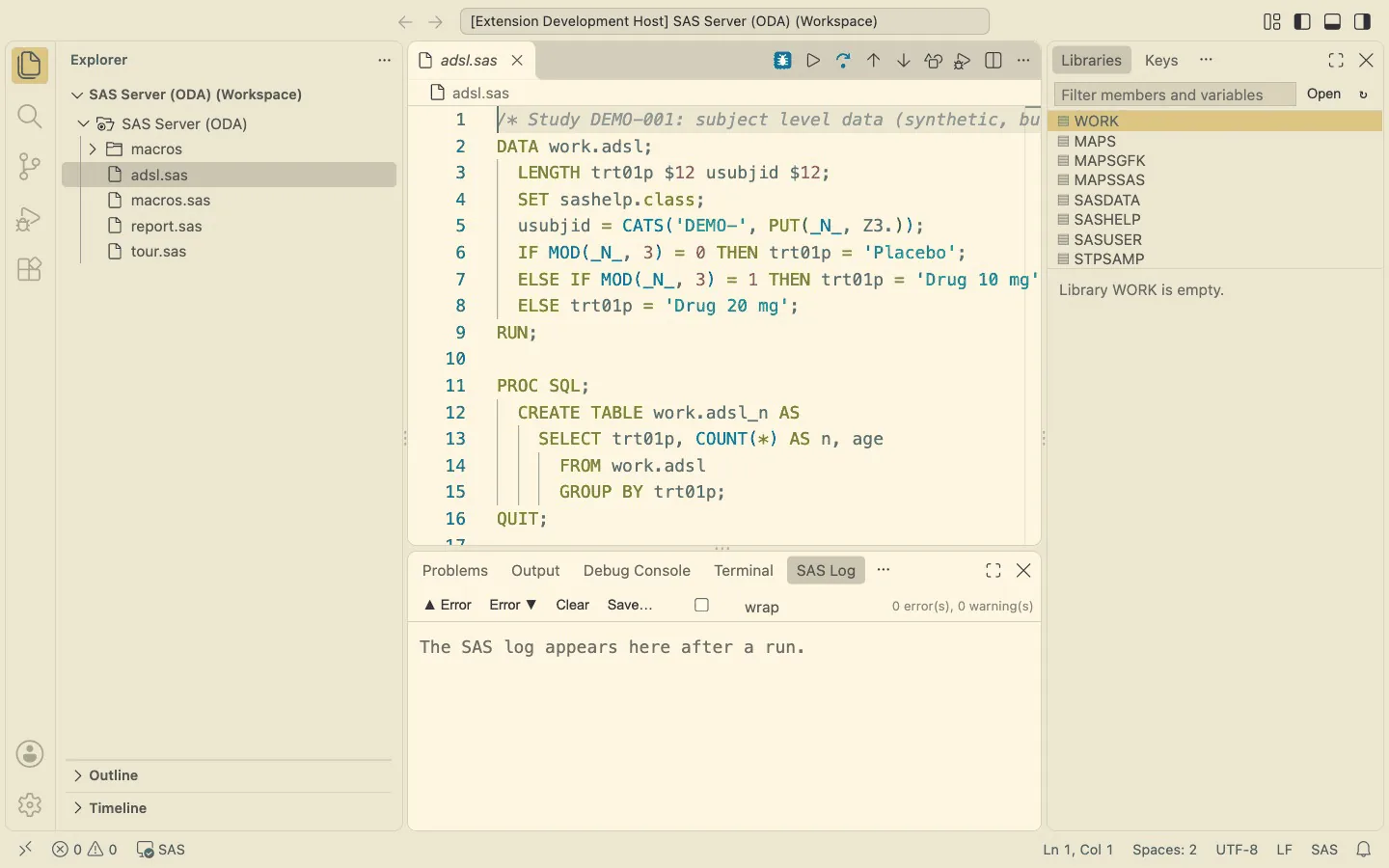
DataStep Studio turns VS Code into a SAS development environment connected to SAS OnDemand for Academics (ODA). You keep your programs where you like (on your computer or directly on the SAS server), run them with one key, read a coloured log whose problems point back to your code, browse data sets, and debug DATA steps and macros line by line.
Community Early Access. All Professional features are available free of charge during Early Access. Early Access is temporary. Professional functionality may require a paid license following the Early Access period. Free Community functionality will remain available. See Editions.
1. What you need
| Editor | Visual Studio Code 1.85 or newer (Cursor and other VS Code builds: install the .vsix file from the Marketplace page, Download Extension) |
| SAS | A free SAS OnDemand for Academics account, or a SAS 9.4 server of your company that SAS Enterprise Guide connects to (IOM) |
| Java | Java 8 or newer |
| Python | Python 3.8 or newer |
DataStep Studio talks to SAS through SASPy, SAS's Python package, and SASPy uses Java. You install Java and Python once; DataStep Studio: Check Setup finds them and installs SASPy for you. You never edit a configuration file, and your password is kept in your system's keychain, as with the SAS extension for VS Code.
2. Install
Plan 10 minutes for the first installation; steps 2.1 and 2.2 are skipped when Java and Python are already there.
2.1 Java
Check in a terminal (macOS: Terminal; Windows: Command Prompt) with java -version. Any answer with version 1.8
or higher (or 11, 17, 21 …) is fine. Otherwise install Eclipse Temurin from adoptium.net
(on Windows tick Add to PATH; on macOS brew install --cask temurin works too).
2.2 Python
Check with python3 --version (Windows: py --version). If it is missing:
- macOS: run
xcode-select --installin Terminal (Apple's developer tools include Python 3), or install it from python.org. - Windows: install it from python.org and tick Add python.exe to PATH.
You do not need to install SASPy yourself.
2.3 The extension
DataStep Studio: Watch the Installation Video shows the steps of this chapter and the next, from installing to the first run and both debuggers (also in Help → Get Started).
- In VS Code open the Extensions view (
Shift+Cmd+Xon macOS,Shift+Ctrl+Xon Windows and Linux), search for DataStep Studio and click Install. The first time, VS Code asks Do you trust the publisher "DataStep Labs"?: click Trust Publisher & Install. Updates come by themselves. - Without access to the Marketplace (some company networks): get the file
datastep-studio-<version>.vsix, then Extensions view → ⋯ → Install from VSIX…, or in a terminalcode --install-extension datastep-studio-<version>.vsix. - Reload VS Code when it asks.
2.4 Check Setup
Open the Command Palette (Shift+Cmd+P / Shift+Ctrl+P) and run DataStep Studio: Check Setup. It finds Java and Python
(also when VS Code was started from the Dock and does not see your shell's settings) and reports, for example:
Java 17 ✓ · Python 3.12 with SASPy 5.109.3 ✓ · no connection profile
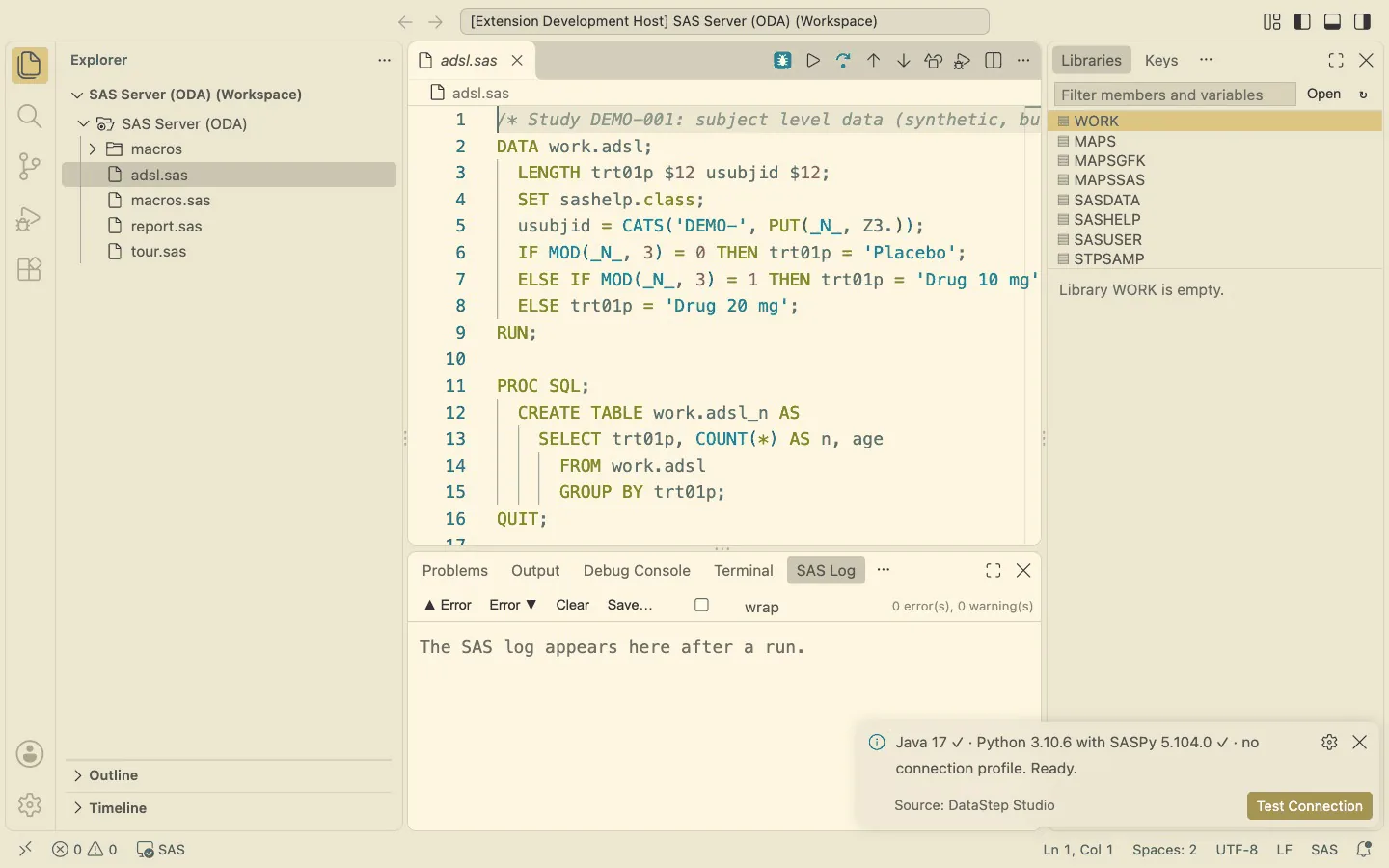
When SASPy is missing it offers Install SASPy: DataStep Studio creates its own small Python environment and installs SASPy there (a few seconds to a minute); your own Python stays as it is. When Java or Python is missing it says what to install and links to the download.
Help → Get Started → Get started with DataStep Studio walks through the same steps.
2.5 Next to the official SAS extension
SAS Institute's own SAS extension for VS Code (SAS.sas-lsp) can stay installed, but both extensions give .sas files
their autocomplete, hover and outline, so every suggestion would appear twice. In the folders where you use SAS
Workbench, disable the other one for the workspace only: Extensions view → SAS → Disable (Workspace). Its
run keys (F3, F8) and DataStep Studio's (F4) do not overlap.
3. Connect to SAS
3.1 Add a connection profile
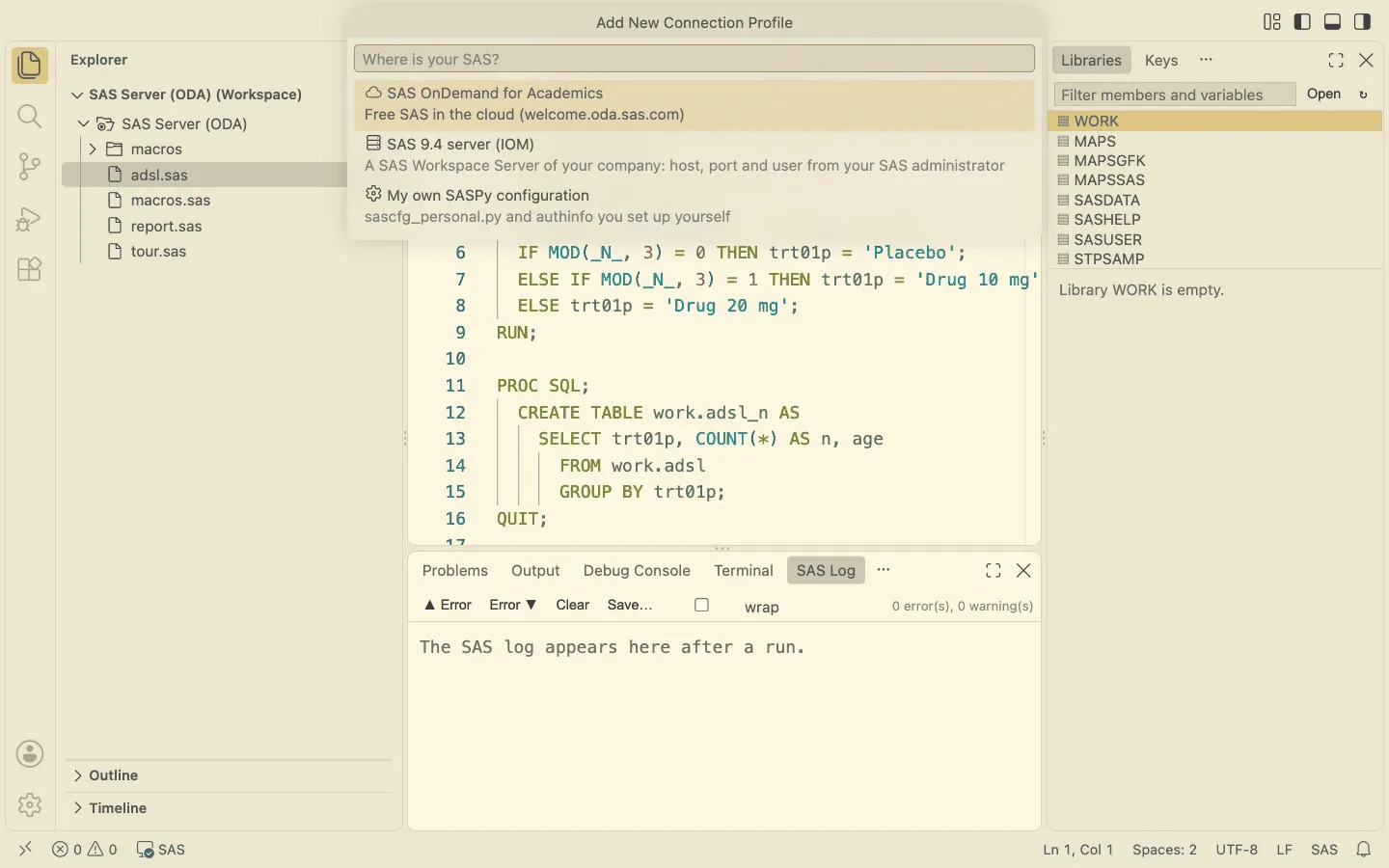
Run DataStep Studio: Add New Connection Profile and answer its questions, as in the SAS extension for VS Code:
| You choose | You enter |
|---|---|
| SAS OnDemand for Academics | your home region, your user ID (or the e-mail address you sign in with) |
| SAS 9.4 server (IOM) | host, port (usually 8591), user; the application server only if your administrator named one |
| From the SAS extension: … | shown when the SAS extension for VS Code has SAS 9.4 (IOM) profiles: they are filled in |
| My own SASPy configuration | the name of a configuration in your sascfg_personal.py (see 3.3) |
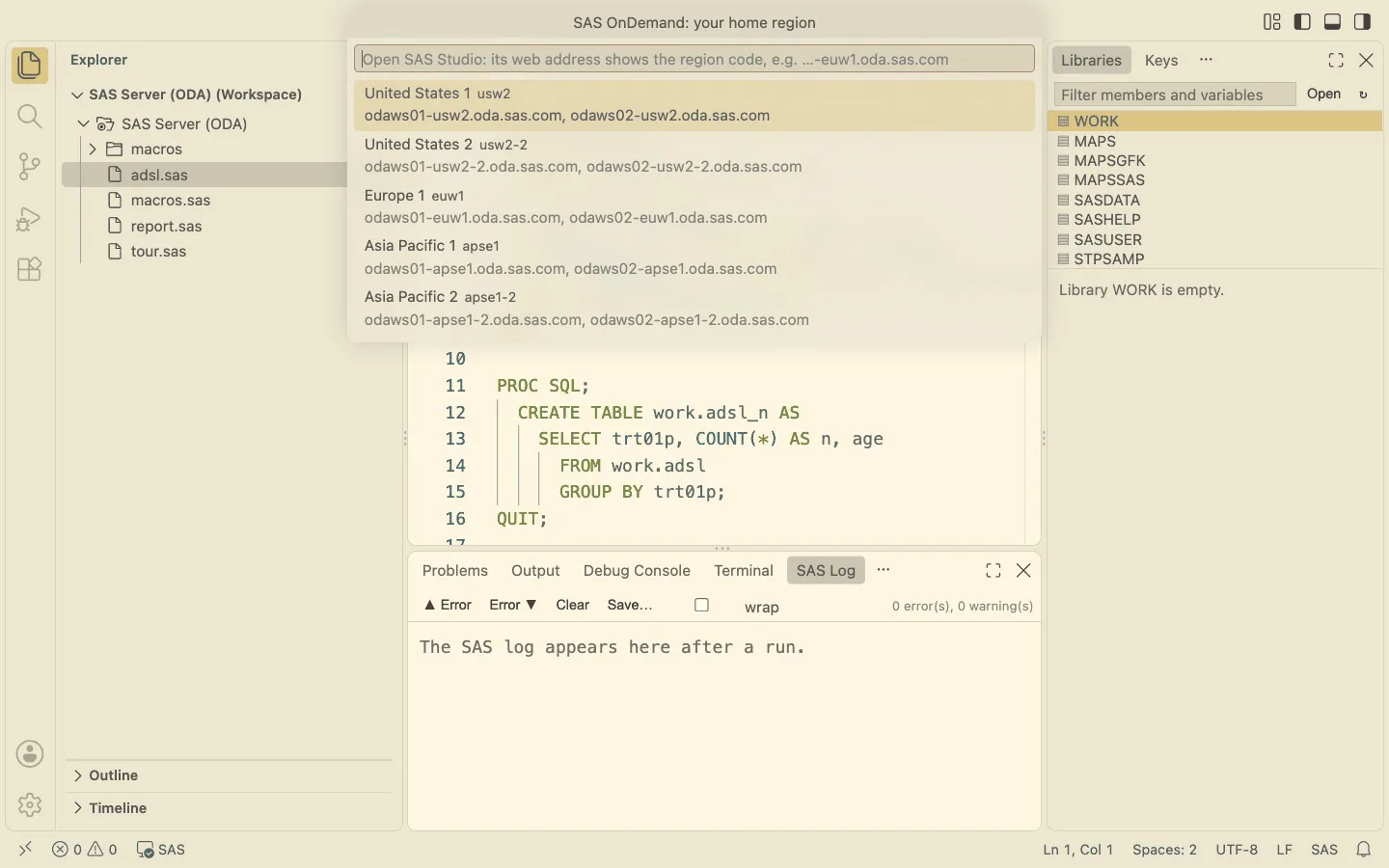
Your SAS OnDemand home region. Sign in at welcome.oda.sas.com and open SAS Studio: its web address contains the region code.
| Region code in the address | Home region |
|---|---|
usw2 |
United States 1 |
usw2-2 |
United States 2 |
euw1 |
Europe 1 |
apse1 |
Asia Pacific 1 |
apse1-2 |
Asia Pacific 2 |
Then press Connect Now (or F4 in a .sas file). The first connect asks for the password once and keeps it in
your system's keychain (macOS Keychain, Windows Credential Manager), never in a file. A wrong password? The error
offers Enter Password Again; DataStep Studio: Forget Saved Password does the same at any time.
DataStep Studio: Switch Connection Profile changes between profiles (the next run connects with the new one),
DataStep Studio: Delete Connection Profile removes one. The profiles are in the setting datastepStudio.connectionProfiles; the
status bar names the active one.
DataStep Studio is tested with SAS OnDemand for Academics. A company SAS 9.4 server uses the same IOM connection; site settings such as single sign-on can need your administrator's help. Not supported in this version: SAS Viya and SAS 9.4 through SSH or COM (the debuggers need an IOM session).
3.2 Settings that can matter
| Setting | Default | When to change |
|---|---|---|
datastepStudio.java |
(found) | Java is in an unusual place: the full path to java / java.exe |
datastepStudio.python |
(found) | You want a particular Python with SASPy: its full path |
3.3 Advanced: your own SASPy configuration
If you already use SASPy with a sascfg_personal.py and an authinfo file, DataStep Studio can use them: choose
My own SASPy configuration in Add New Connection Profile, or add no profile at all (then the configuration named in
datastepStudio.cfgname, default oda, is used). SASPy's own
configuration guide and
SAS OnDemand page describe both files. A SAS OnDemand or IOM profile can
also take its credentials from your authinfo file: set "authkey": "oda" in the profile in the settings.
3.4 The session
- The status bar shows SAS when connected and SAS running 0:12 while a program runs.
- Idle sessions. While you work, DataStep Studio keeps the session alive; after 30 minutes without activity it closes it itself, so no session is held for nothing. The next run connects again.
- Each DataStep Studio window has its own SAS session (WORK, macro variables, options).
4. The layout
When SAS connects, the SAS tabs open in their places:
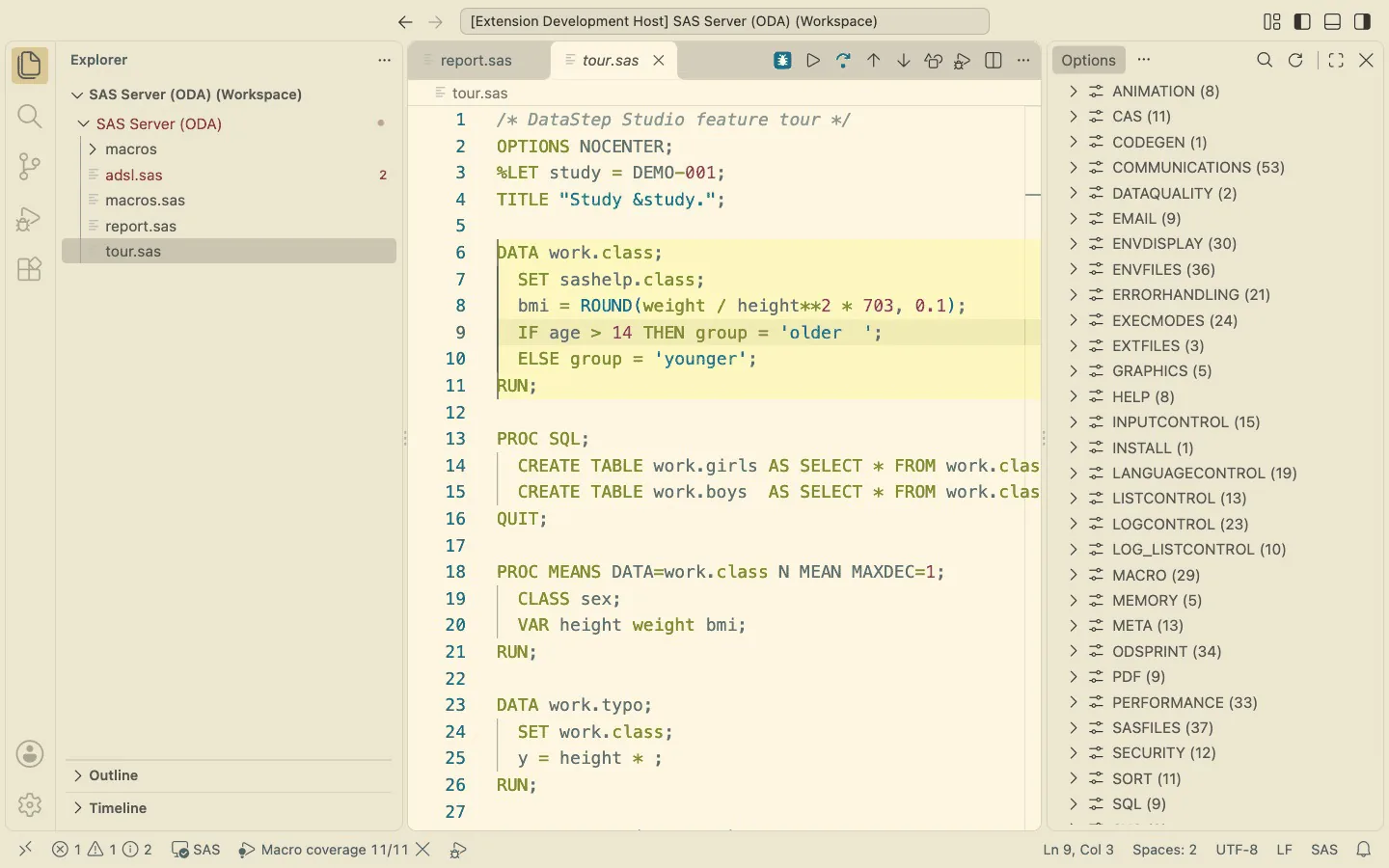
- Right side bar: Libraries, Keys, Variables, Options
- Bottom panel: SAS Log, Suspicious Log, SAS Output, Created Files
Drag any tab where you like: VS Code remembers the place. WSAVE ALL in the SAS command box (Ctrl+Alt+C), or
DataStep Studio: Save Layout (WSAVE ALL) in the Command Palette, saves which SAS tabs are showing; they open again on the
next connect, as in the SAS Enhanced Editor.
5. Run your code
| Run mode | Key | What runs |
|---|---|---|
| Run | F4, Cmd/Ctrl+Enter |
the selection, else the whole program |
| Run To Line | Ctrl+F4, Ctrl+Alt+Up |
from the top to the cursor line (a step is never cut in half) |
| Run From Line | Ctrl+Alt+Down |
from the step at the cursor to the end |
| Run Step | editor title bar ▷ menu | the step, SQL statement, macro definition or macro call at the cursor — a dialog offers innermost to outermost |
| Run in Template | Command Palette | the step wrapped in a code template with ${CODE} (setting datastepStudio.templates; ODS_RTF built in) |
| Run As Macro | Command Palette | %DO/%IF code selected inside a macro: asks for the macro's parameters |
| Resolve Code | Ctrl+Alt+R |
shows the code a macro call generates (MPRINT), formatted, beside the program |
| SAS command | Ctrl+Alt+C |
one line of SAS from a command box with history; WSAVE ALL saves the layout |
| Open Last Data Set | F12 |
the data set the last step created (&SYSLAST) |
| Clear Log and Output | F2 |
empties SAS Log, Suspicious Log and SAS Output |
Run in Batch
Right-click one or more programs or a folder in the Explorer → Run in Batch (also in the editor's Run menu and the
Command Palette, for the program in the editor). A folder runs its .sas files, not those of its subfolders.
- The programs run one after another, in the order of their paths, numbers by value (
2_adae.sasbefore10_adlb.sas): name them01_adsl.sas,02_adae.sas, … to set the order. - Each program gets a new SAS session: an empty WORK library, no macro variables of the program before or of your
own session, the autoexec of the setting
datastepStudio.autoexec. A program that works in batch does not depend on what you happened to run before. Your own session is not touched; you keep working while the batch runs. program.logand, when there is output,program.lstare written next to each program. The log starts with the program, the connection, the start time and the duration. A changed program is saved before it runs.- ERRORs and WARNINGs appear in Problems at their lines and each log in the SAS Log tab. At the end a message says how the batch went; Show Summary opens the table in the output SAS Batch, the second button opens the first log with errors.
- Cancel in the progress message stops after the running program. Programs selected while a batch runs join it.
- Project files are synced and
%INCLUDEworks exactly as with F4; a program in the SAS Server window runs in its folder on the server.
A new SAS session takes a few seconds per program on SAS OnDemand.
6. Read the log: SAS Log, Problems, Suspicious Log
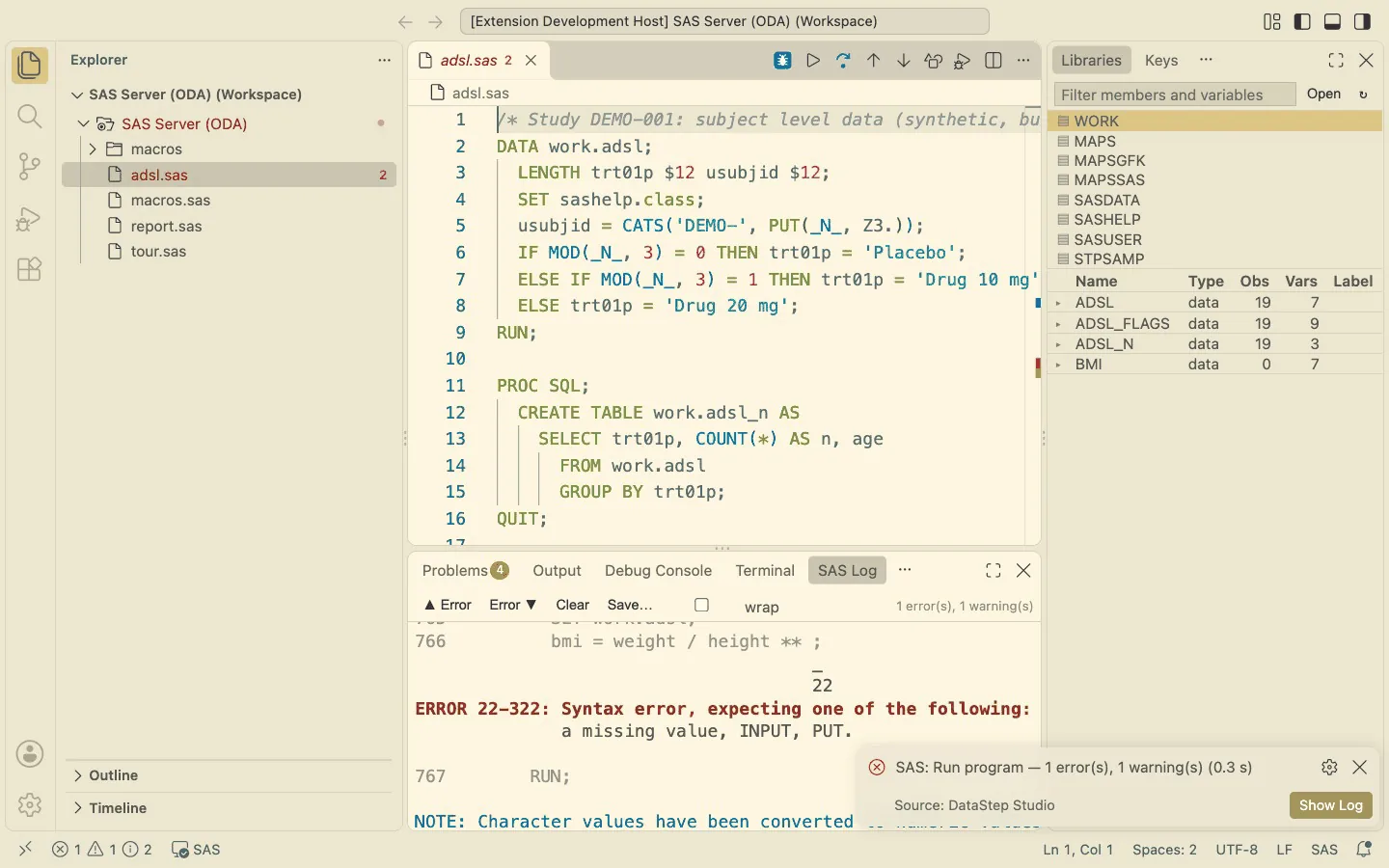
- SAS Log — coloured (ERROR red, WARNING yellow, NOTE blue). ▲ Error / Error ▼ jump between problems; a click on an ERROR or on an echoed line number jumps to that line of your program.
- Problems — every ERROR, WARNING and data NOTE (uninitialized, missing values generated, repeats of BY values, …) is a red or yellow squiggle at its line and column in the program.
- Suspicious Log — only the lines that need a look, from every run: all ERRORs and WARNINGs (your own messages too) and the NOTEs a clinical log check flags: remerging summary statistics, uninitialized, Missing values were generated, repeats of BY values, converted to numeric/character, Invalid data, Division by zero, W.D format was too small, SAS went to a new line, 0 observations, 0 rows, LOST CARD … The tab's badge counts errors and warnings; Errors / Warnings / Notes show or hide each kind; a click jumps to the program line.
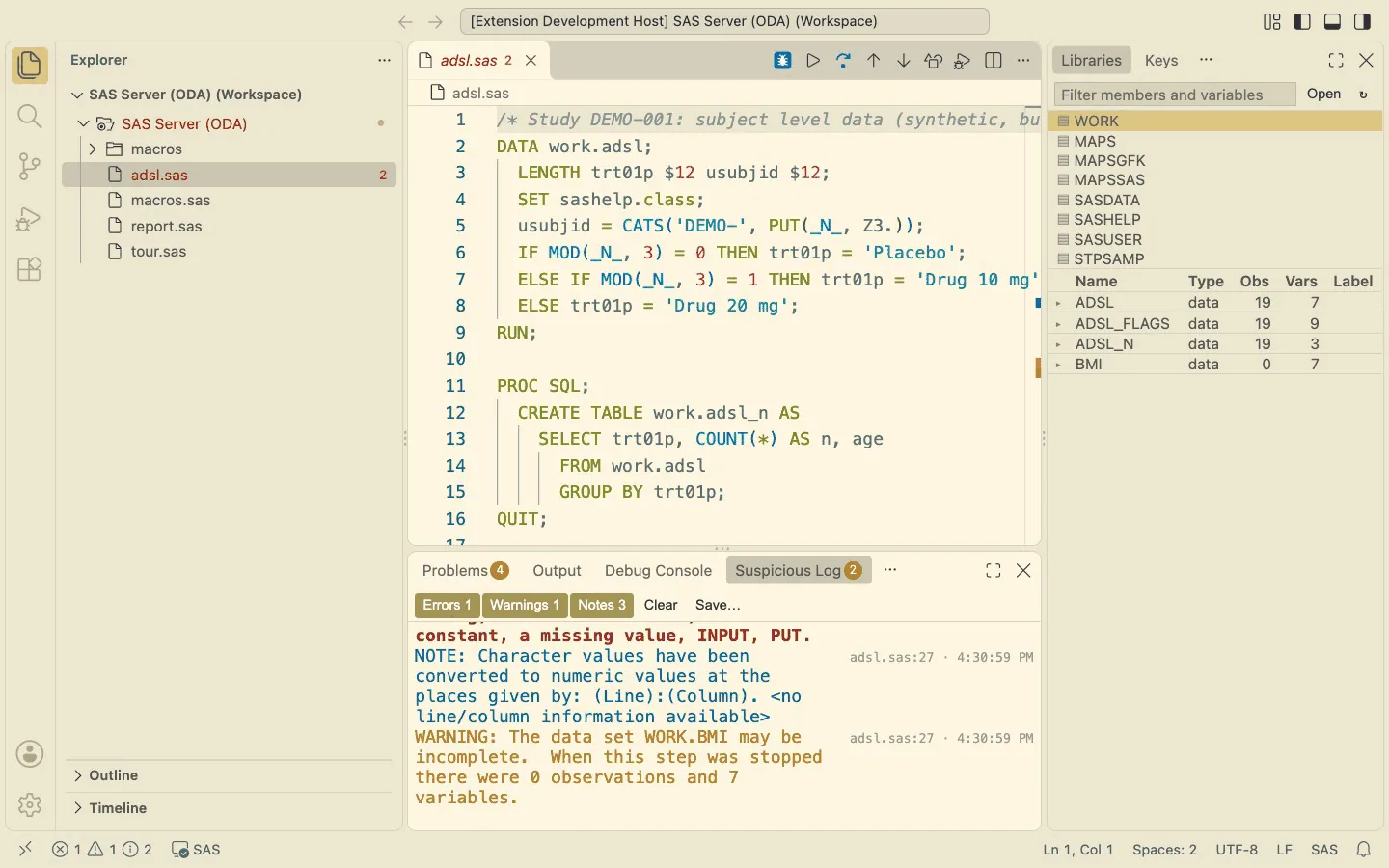
Your own rules: datastepStudio.log.suspiciousNotes adds patterns (for example Table WORK\.\w+ created, with 0 rows),
datastepStudio.log.suspiciousIgnore leaves known harmless messages out.
7. Work on the SAS server
DataStep Studio: Open SAS Server Folder (Command Palette Shift+Cmd+P / Ctrl+Shift+P, or the button in an empty
Explorer) opens a second window whose folder is your SAS OnDemand home: open, edit, save,
create, rename and delete server files as if they were local. A program there runs with SAS in its own server folder
(%INCLUDE "macros/x.sas" works relative to it); nothing is copied.
Workspace Trust. VS Code asks whether you trust the authors of a folder before it runs tasks, debuggers and the folder's own settings. The first SAS Server window is new to VS Code, so it starts in Restricted Mode:
- You can open, edit, save and run programs as usual.
- The DATA step and macro debuggers, and the folder settings that run code or write on their own (Python, SASPy configuration, autoexec, templates, auto push, keyboard shortcuts, hidden files), wait until you trust the window.
DataStep Studio says so in a message with a Trust… button. It opens VS Code's Workspace Trust page: click
Trust. The SAS Server window always uses the same workspace file (~/.datastep-studio/SAS Server (ODA).code-workspace),
so you do this only once; every later SAS Server window is trusted. Workspaces: Manage Workspace Trust in the
Command Palette shows the page again and lists what you trust.
Local programs: the project goes to the server by itself. Keep your files on your computer and use Git and GitHub
as usual there. Before each run DataStep Studio copies the files of the project (the Git repository around the program,
else its workspace folder) that changed since the last run to a folder of your SAS home,
~/datastep-studio/<project>-<id>, and runs the program there. A run without changes costs a few milliseconds and no
SAS call. Files SAS writes in the project come back to your computer; data sets and catalogs stay on the server.
Only an unusually large project (more than 2000 files or 200 MB) makes DataStep Studio ask once which folder to copy;
DataStep Studio: Choose Upload Folder changes the choice, datastepStudio.sync.excludeDirs and excludeFiles leave things out.
The status bar shows where the project is on the server, for example ☁ study-3f2a9c1e. A click opens that folder
in the SAS Server window.
Copy files to the server by hand. In the SAS Server window, drag files or folders from Finder or Windows Explorer onto a folder in the Explorer: they are copied to the server, with their subfolders.
%INCLUDE with relative paths. SAS resolves every path on the computer where SAS runs, not where the editor is.
DataStep Studio therefore runs each program with SAS's working folder set to the program's folder on the server: a
server program in its own folder, a local program in its copy on the server. So %INCLUDE "macros/setup.sas",
LIBNAME adam "data/adam"; and FILENAME with relative paths work as with a SAS on your own computer.
8. The data viewer
Double-click a data set in Libraries, press F12 for the last one created, or Ctrl+Alt+D on a data set name
in your program.
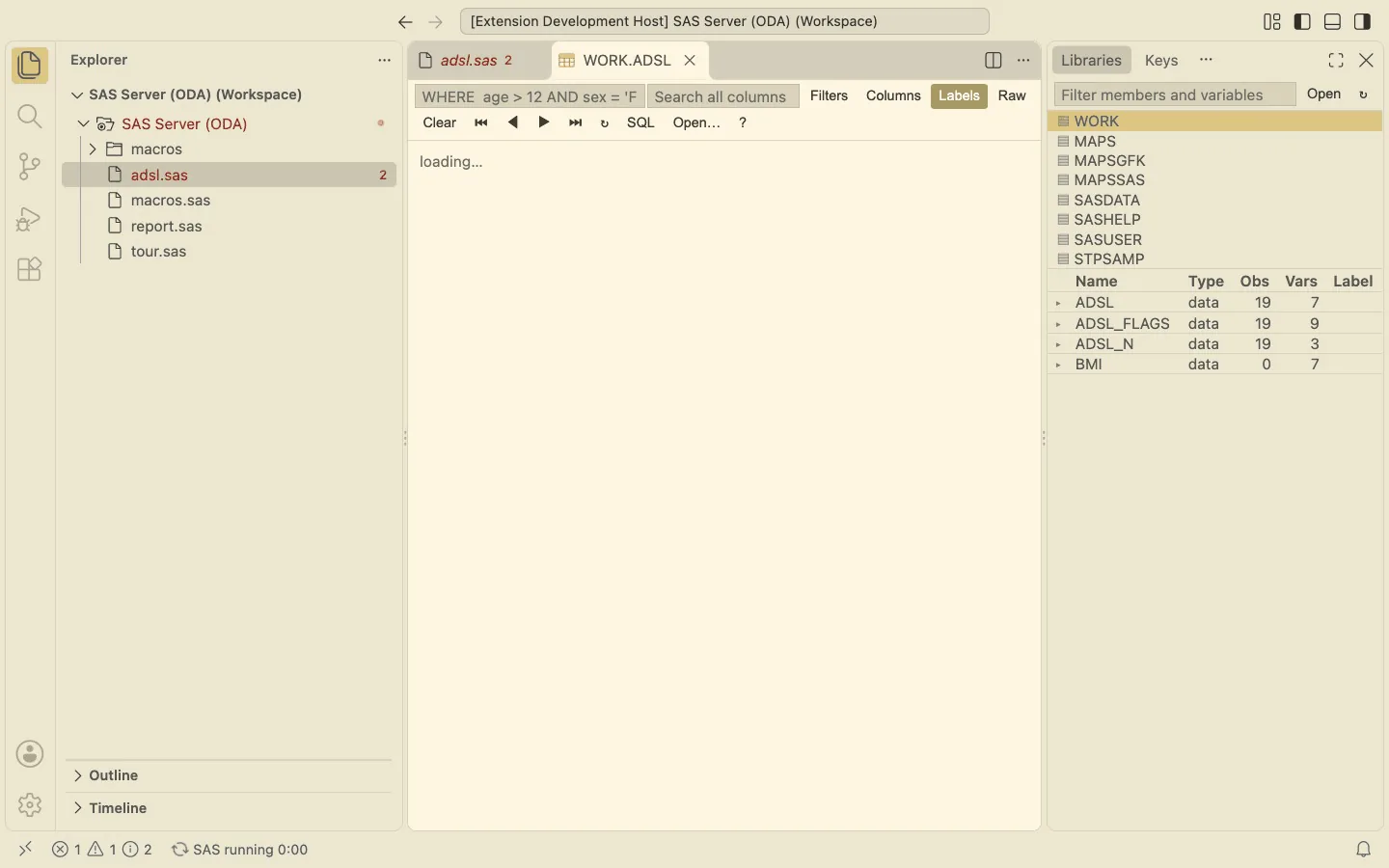
- Move with the arrow keys, PageUp/PageDown;
ggoes to an observation number. - Filter: type a WHERE clause (
w), search all columns (/), or use the filter row (t) per column (>13,1-5,a,b,c,!a,A*,.for missing, dates like01JAN2020). - Keep a value: Enter on a cell keeps rows with that value; Shift+Enter excludes it.
- WHERE keys:
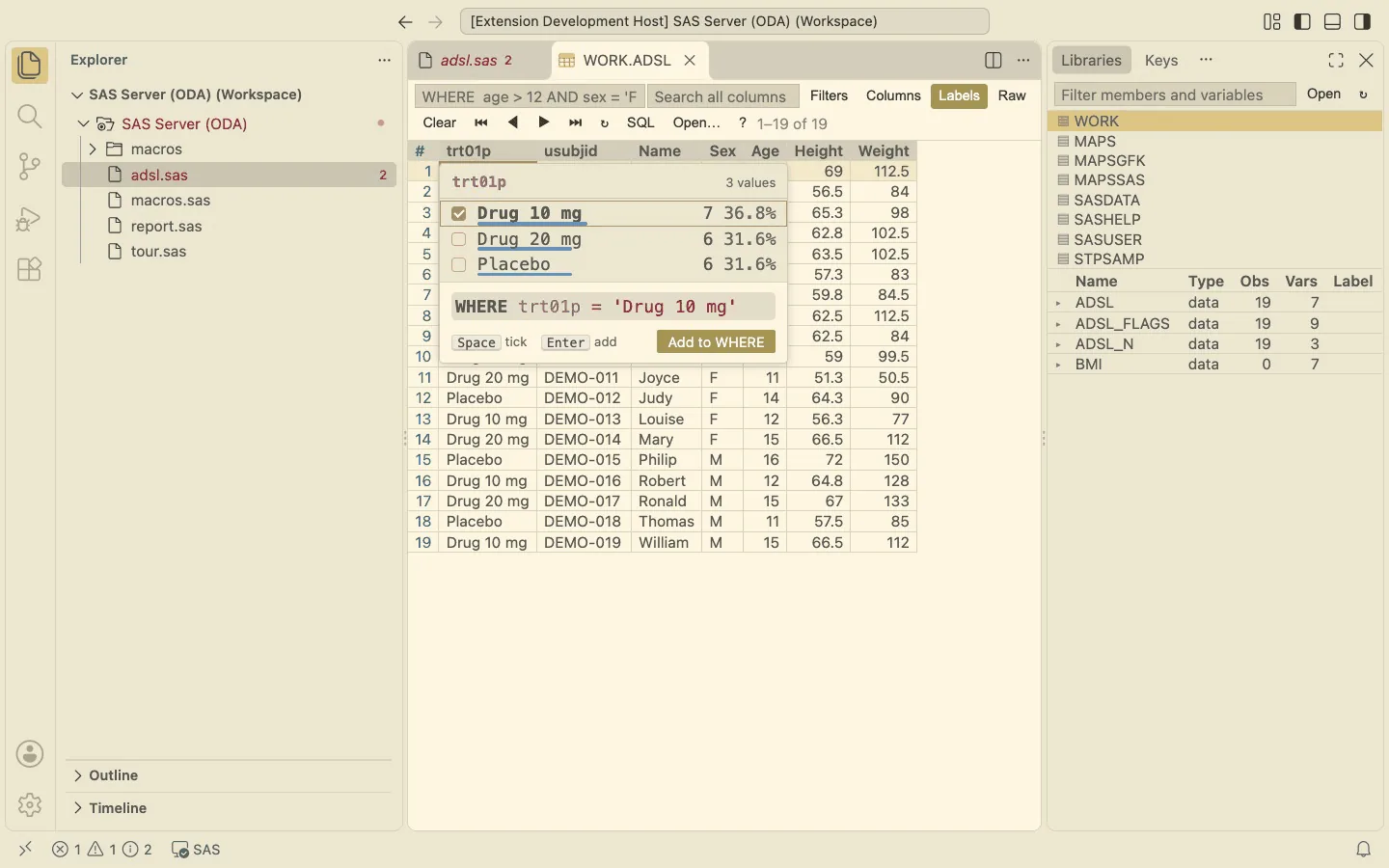
Ctrl+Alt+Eaddscolumn = valueof the cell to the WHERE box;Ctrl+Alt+Iopens the value picker: tick the values to keep, the SAS condition is shown as you tick, Enter addscolumn IN (…);Ctrl+Alt+Rshows all rows again (the sort stays). - Frequencies (
f), sort (s,a,d), hide / choose columns (h,c), labels (l), raw / formatted values (v).?lists every key.
9. Libraries, Variables, Options
- Libraries — librefs and their members; expand a data set (▸) for its variables with type and label; a click on a variable opens the data set at that column.
- Variables — the macro variables of the session (global and automatic), filter and add
name=value. - Options — every system option by group. Click an option to change it (on/off options offer the other setting, numbers and text open an input box); 🔍 finds an option by name or description; changed options show (changed, was …) and ↺ puts the old value back; 🔒 marks options SAS only sets at startup.
10. Write code faster: autocomplete, hover, parameter hints
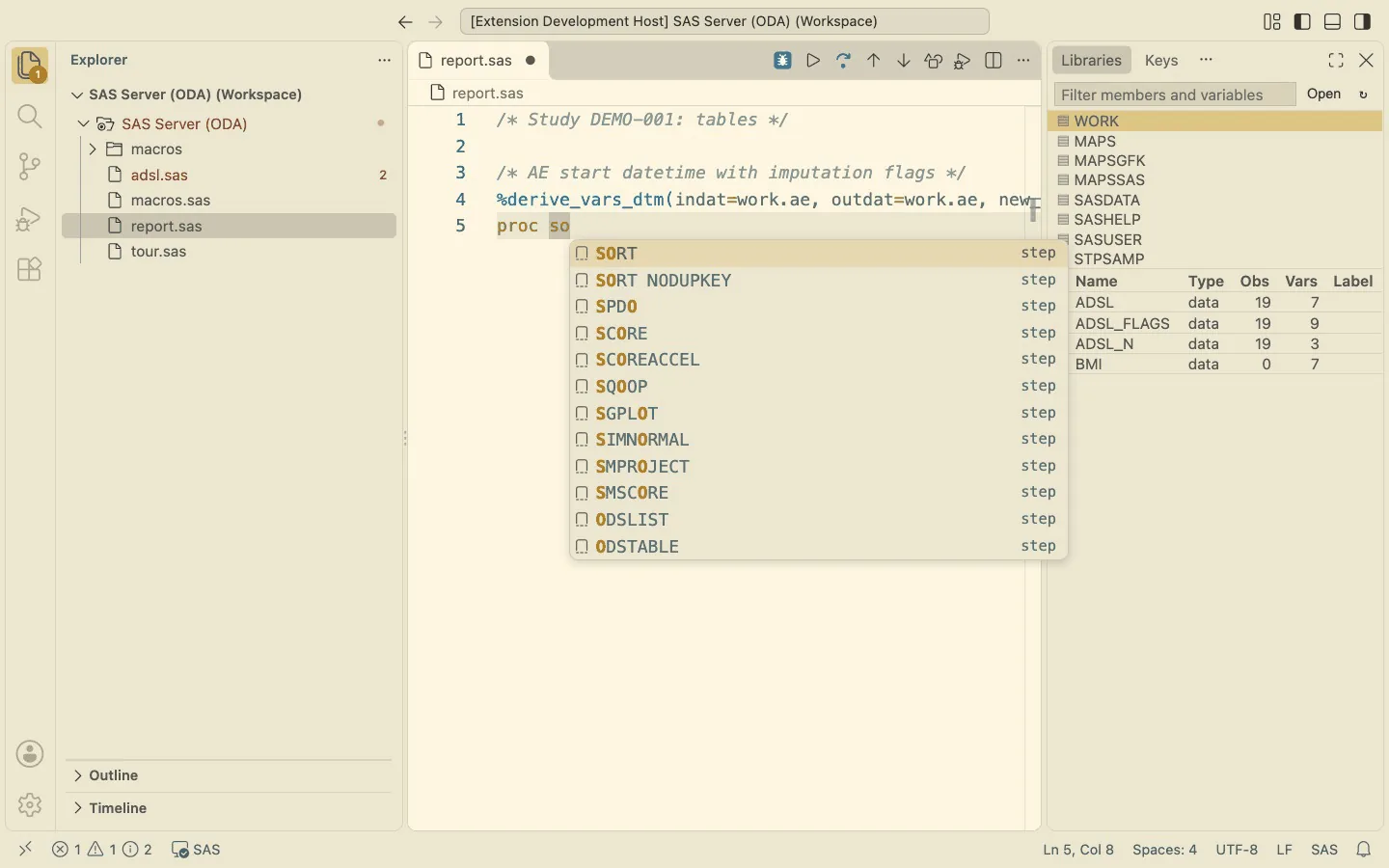
Suggestions open as you type (or with Ctrl+Space): procedure names after PROC, the statements of the step you are
in, the options of a statement (NODUPKEY, OUT=), functions, formats, data set options, system options after
OPTIONS, librefs and members after DATA=/SET/FROM, the columns of the data sets the step reads, macro
variables after & (inserted as &name.), macros after %.
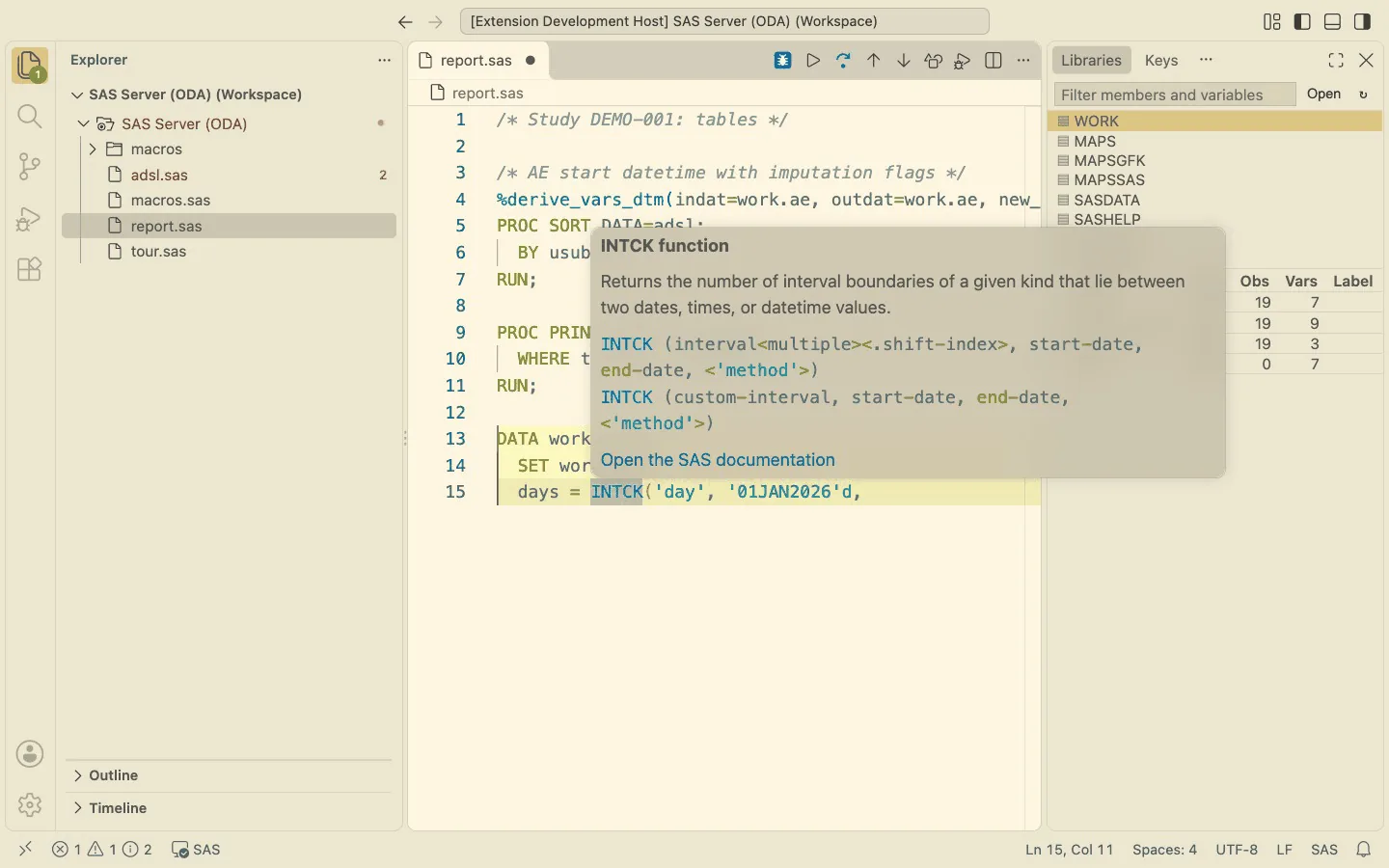
- Hover a function, procedure, statement or option: description, syntax and Open the SAS documentation (SAS 9.4). Hover a data set: rows, columns and label; a column: type, format and label.
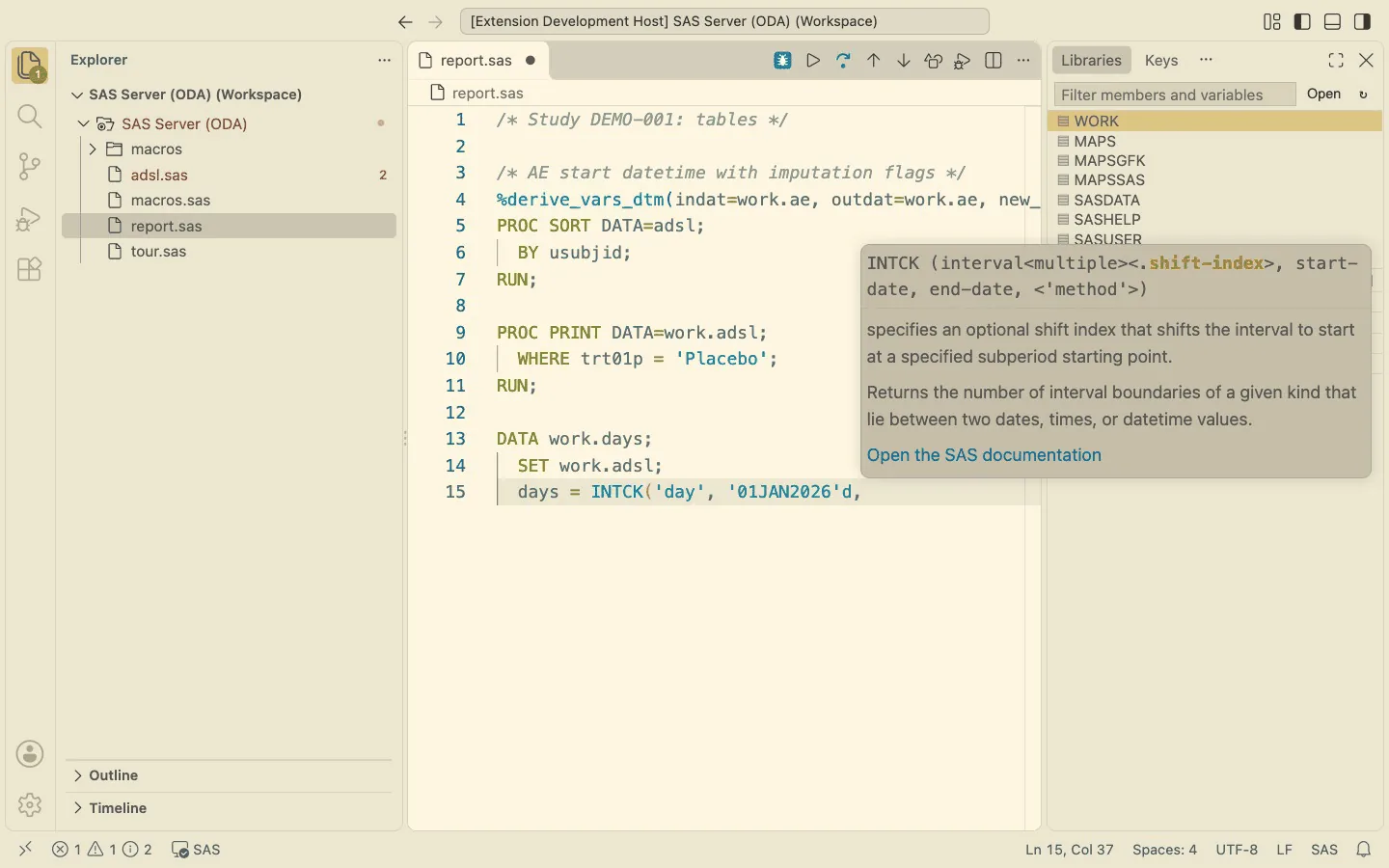
- Parameter hints inside a function call show its arguments.
Nothing waits for SAS while you type: the syntax data ships with the extension and the session part comes from a cache filled while SAS is idle. A suggestion list takes about 10–20 ms on a 5000 line program.
Format your code
Format SAS Program (right-click in a SAS program, or DataStep Studio: Format SAS Program) lays the program out
in house style; with a selection, only the statements you selected. VS Code's own Format Document
(Shift+Alt+F) and Format Selection do the same. Nothing is changed unless you ask (VS Code's
editor.formatOnSave stays off unless you turn it on).
- SAS keywords, functions, options and known formats in upper case; variables, data sets and your macro calls in lower
case: by their place in the statement, so a variable called
maxstays a variable. - 2 spaces per level: DATA / PROC to RUN, DO / SELECT to END,
%DOto%END,%MACROto%MEND. - One blank around
=and comparisons in expressions, one after a comma;=aligned in consecutive assignments and%LETstatements; IF / ELSE IF / ELSE withTHENin one column. - A macro call longer than 120 characters (or already over several lines): comma first,
=aligned. A long PROC SQL statement: one clause per line. A shortPROC SORT ...; BY ...; RUN;on one line. - Macro variable references get their period:
&adsbecomes&ads..
What stays as written: the program header (the comments at the top), your line breaks (continuation lines move with
their statement, so hand-aligned lists stay aligned), strings, comments, DATALINES, and macro text: macro
statements and the arguments of macro calls keep their case, because there case can matter.
After formatting, DataStep Studio compares the program before and after, token by token: only whitespace, line breaks,
the case of words outside macro text and the periods of macro variables may differ. If anything else would change,
the program is left as it was and a message says why. The datastepStudio.format.* settings change the rules
(keyword case, indent, alignment, maximum line length).
Style hints in Problems (source SAS style), for what the formatter must not rewrite on its own: * comments (one
without its semicolon swallows the next statement), a literal ERROR: / WARNING: in PUT or %PUT (split it:
PUT "WAR" "NING: ..."), Boolean flags (flag = (a = b);), macro variables without a period. Dashes in comments are a
house rule you can switch on: datastepStudio.lint.rules.
11. Smart code: step templates, values, your macros
(Professional)
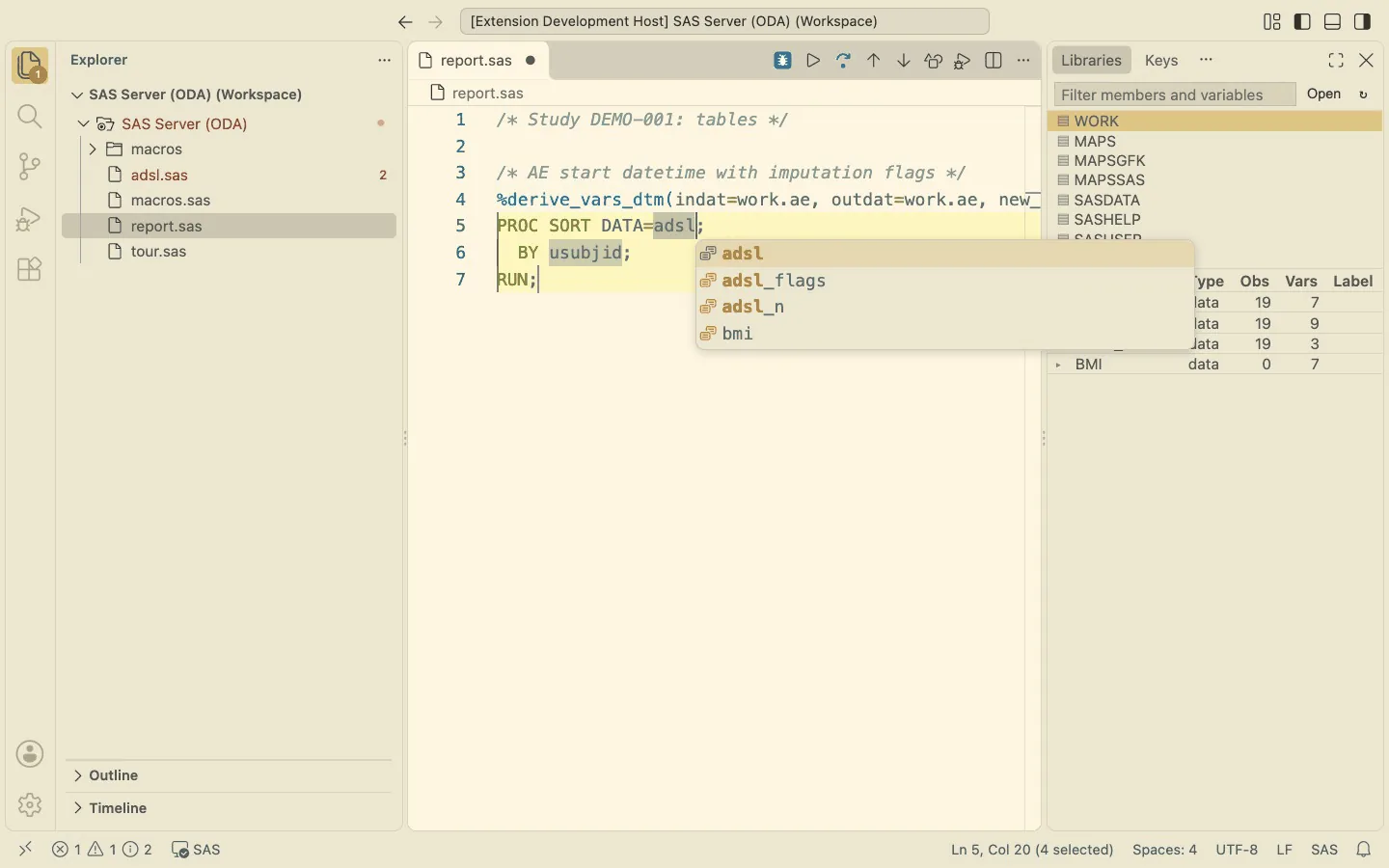
Step templates. proc so + Enter writes the whole step in house style; DATA= offers the data sets your program
made above (the newest first), BY is filled with the BY you used for that data set before or with its key variables
(USUBJID, PARAMCD, AVISITN …). Tab moves to the next place to fill. Hand-written templates for SORT, PRINT, MEANS,
SUMMARY, FREQ, SQL, TRANSPOSE, CONTENTS, DATASETS, REPORT, TABULATE, UNIVARIATE, SGPLOT, IMPORT, EXPORT, FORMAT,
APPEND, COMPARE; every other procedure gets a generic step (QUIT; where it needs it). da offers DATA (SET)
and, after two data sets sorted the same way, DATA (MERGE a b).
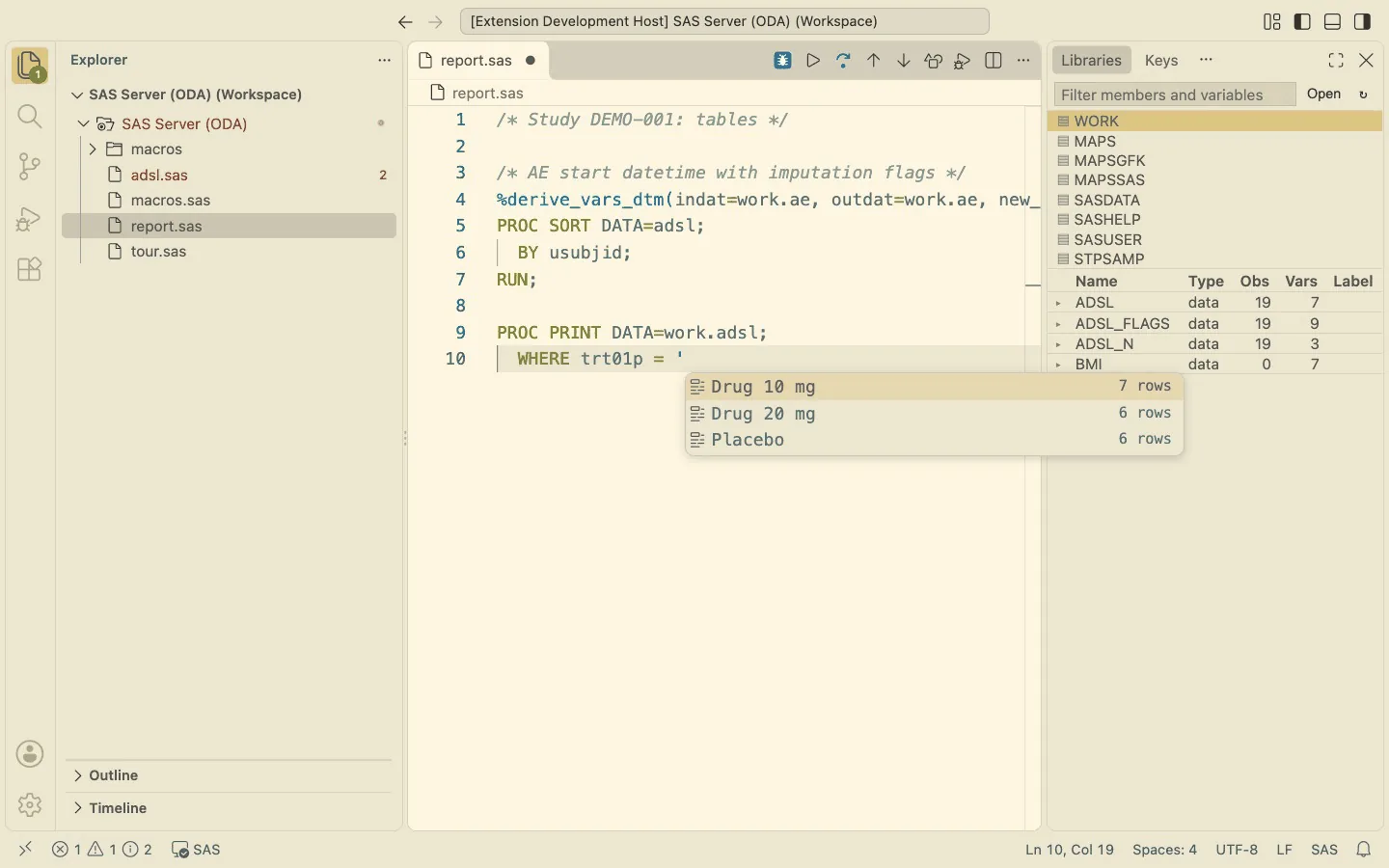
Values in quotes. WHERE trt01p = ' lists the values of the column in your data, the most frequent first (data
sets up to a million rows, columns with up to 200 values).
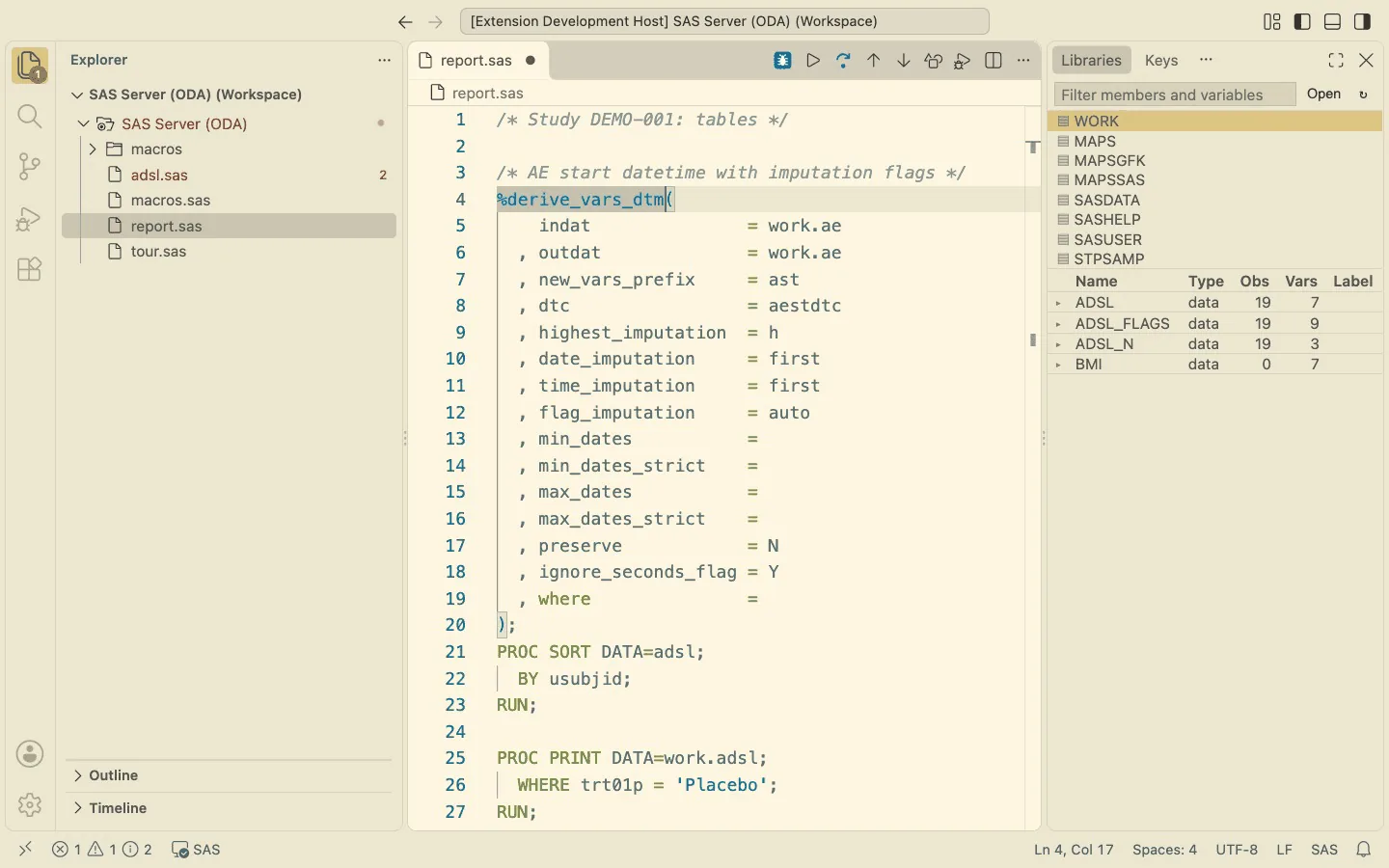
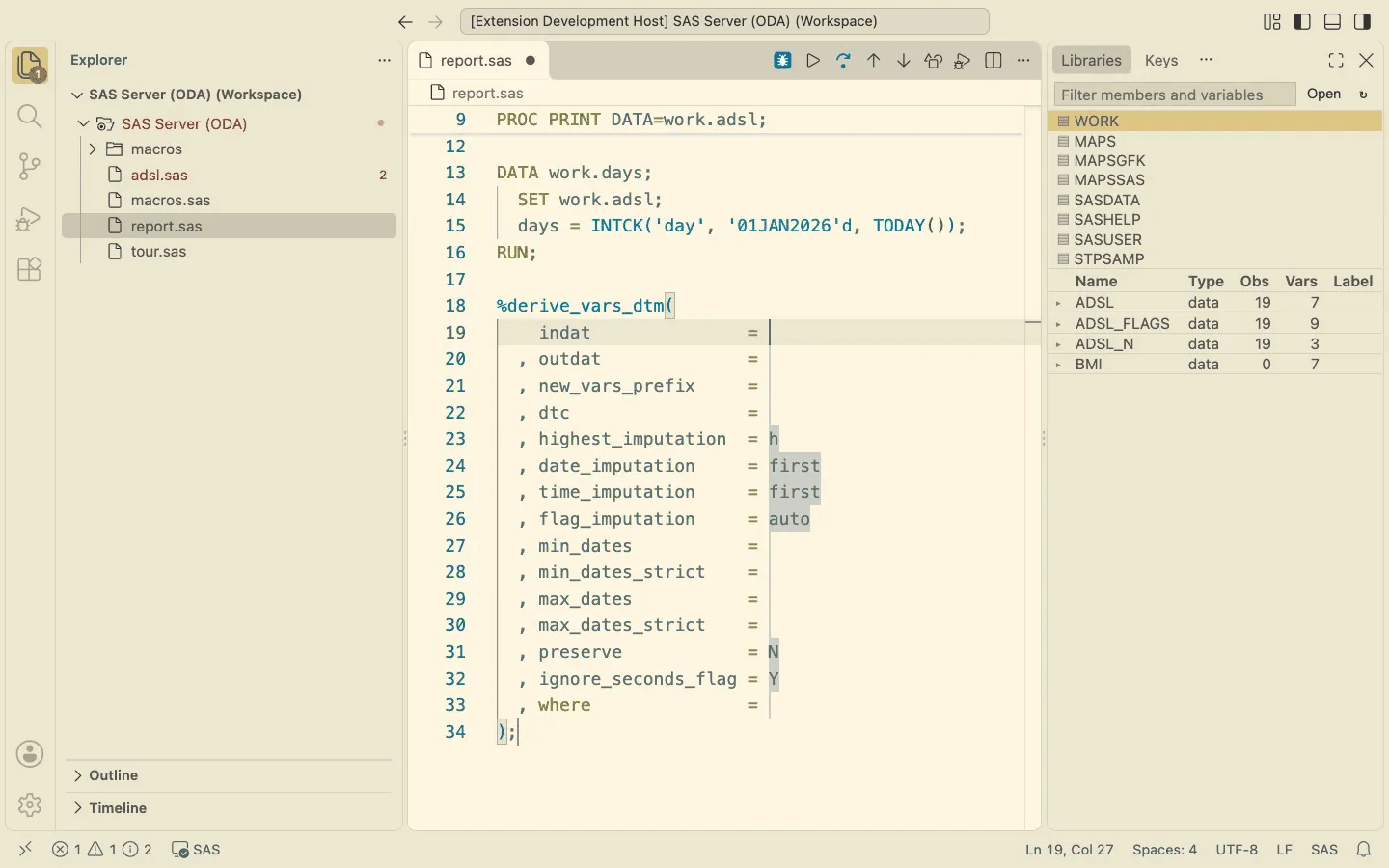
Your macros. DataStep Studio knows the %MACRO definitions of your workspace. In the SAS Server window it looks
them up on the server as soon as a program calls a macro: in the program's folder, the folders above it, their
macros folders and SASAUTOS. Here report.sas calls %derive_vars_dtm, defined in macros/derive_vars_dtm.sas.
Enlarge and Optimize macro calls — on the call at the cursor, or right-click in the editor:
Enlarge Macro Call Ctrl+Shift+E |
every parameter of the definition: the values you gave, the others at their default |
Optimize Macro Call Ctrl+Shift+O |
parameters at their default left out; once more: the call on one line |
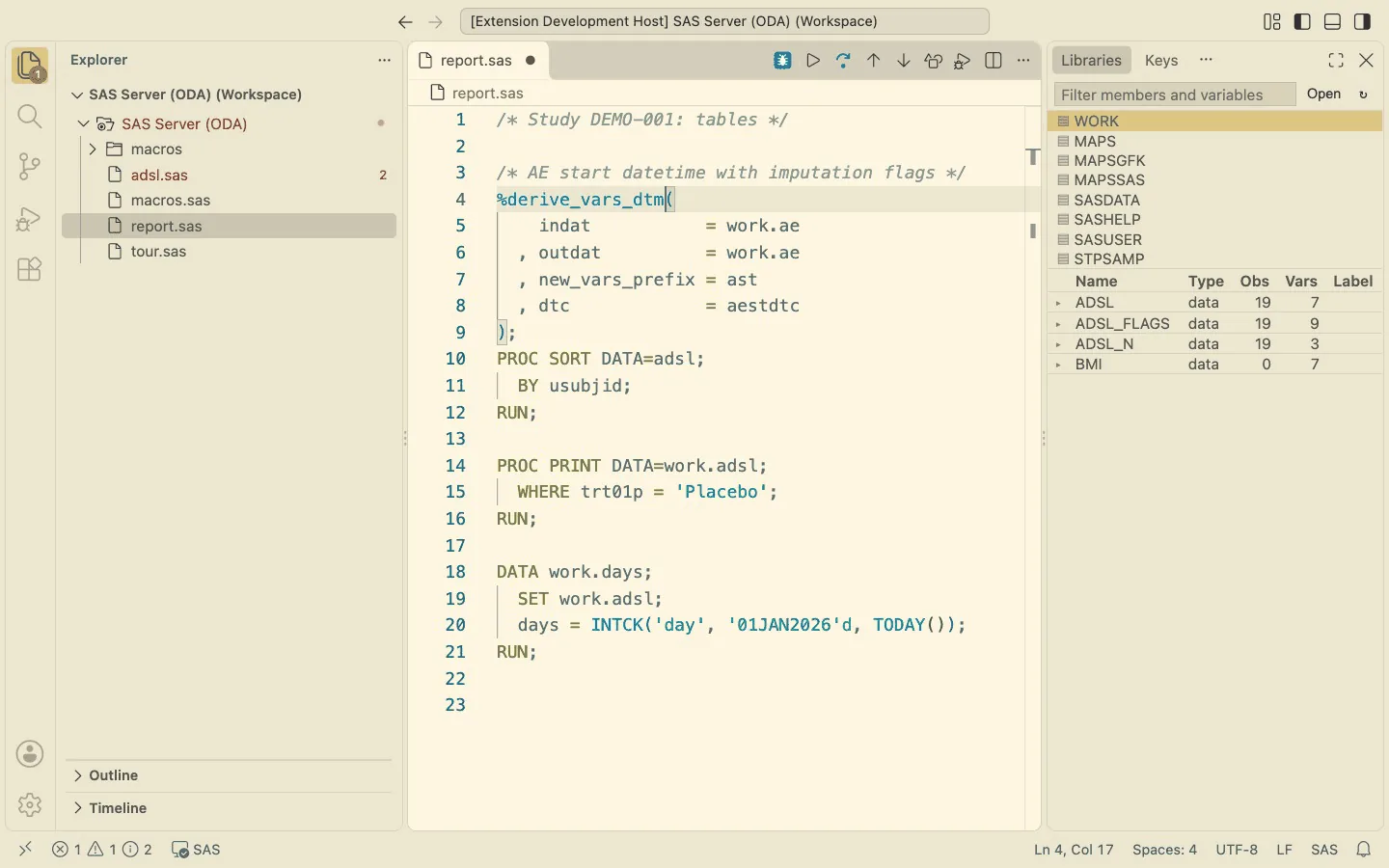
%deri + Enter writes a new call with every parameter, comma first, the defaults filled in; Tab moves from value
to value. The parameter hint and the hover show the parameters too.
12. Debug a DATA step
(Professional)
Put the cursor in a DATA step and press F5 (or DataStep Studio: Debug DATA Step). The step runs with SAS's DATA step
debugger: Step Over (F10) through the statements, Continue (F5) to the next breakpoint, breakpoints in the
gutter with conditions (age > 14), Jump to Cursor, the PDV in the Variables view, hover a variable for its
value, change a value in the Variables view.
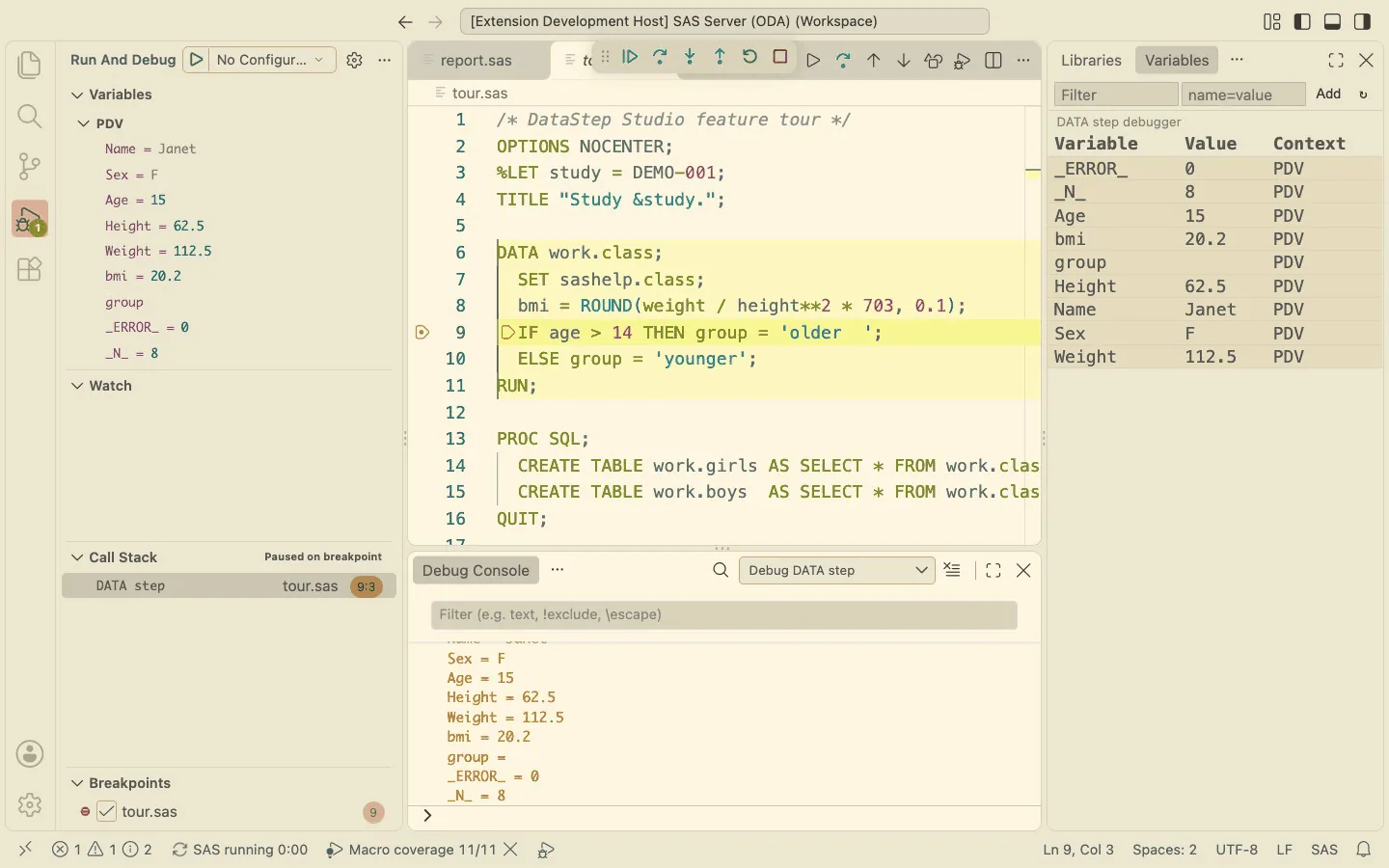
A DATA step that calls a macro (for example %derive_vars_dtm(...) between SET and RUN): the macro writes
statements that have no lines of their own in your program. Debug DATA Step therefore expands the step first and
opens it beside your program: the same DATA step with the macro's statements written out. The debugger steps through
that. The expansion only compiles the step (as DATA _NULL_ with OBS=0): it reads and writes no data. The macro must
be defined in the SAS session (run its definition, or the program that %INCLUDEs it, first).
To follow one observation, set a breakpoint in the expanded step with a condition on its values, for example
midtc = "2024-12" or usubjid = "TEST12", and press F5: the debugger stops at that observation (_N_ shows
which one), and F10 shows which branch the macro's code takes for it.
Where the macro's own logic is the question (which %IF branch, which parameters), use the macro debugger (next
chapter): it runs the macro once, while the code is written, not per observation.
13. Debug a macro
(Professional)
DataStep Studio: Watch the Macro Debugger Video shows this chapter in one minute, inside VS Code.
The example: %sum_of_squares(n) adds 1² + 2² + … + n² and calls %square for each number.
%MACRO square(n);
  %LOCAL result;
  %LET result = %EVAL(&n. * &n.);
  &result.
%MEND square;

%MACRO sum_of_squares(n);
  %LOCAL total i;
  %LET total = 0;
  %DO i = 1 %TO &n.;
    %LET total = %EVAL(&total. + %square(&i.));
  %END;
  &total.
%MEND sum_of_squares;
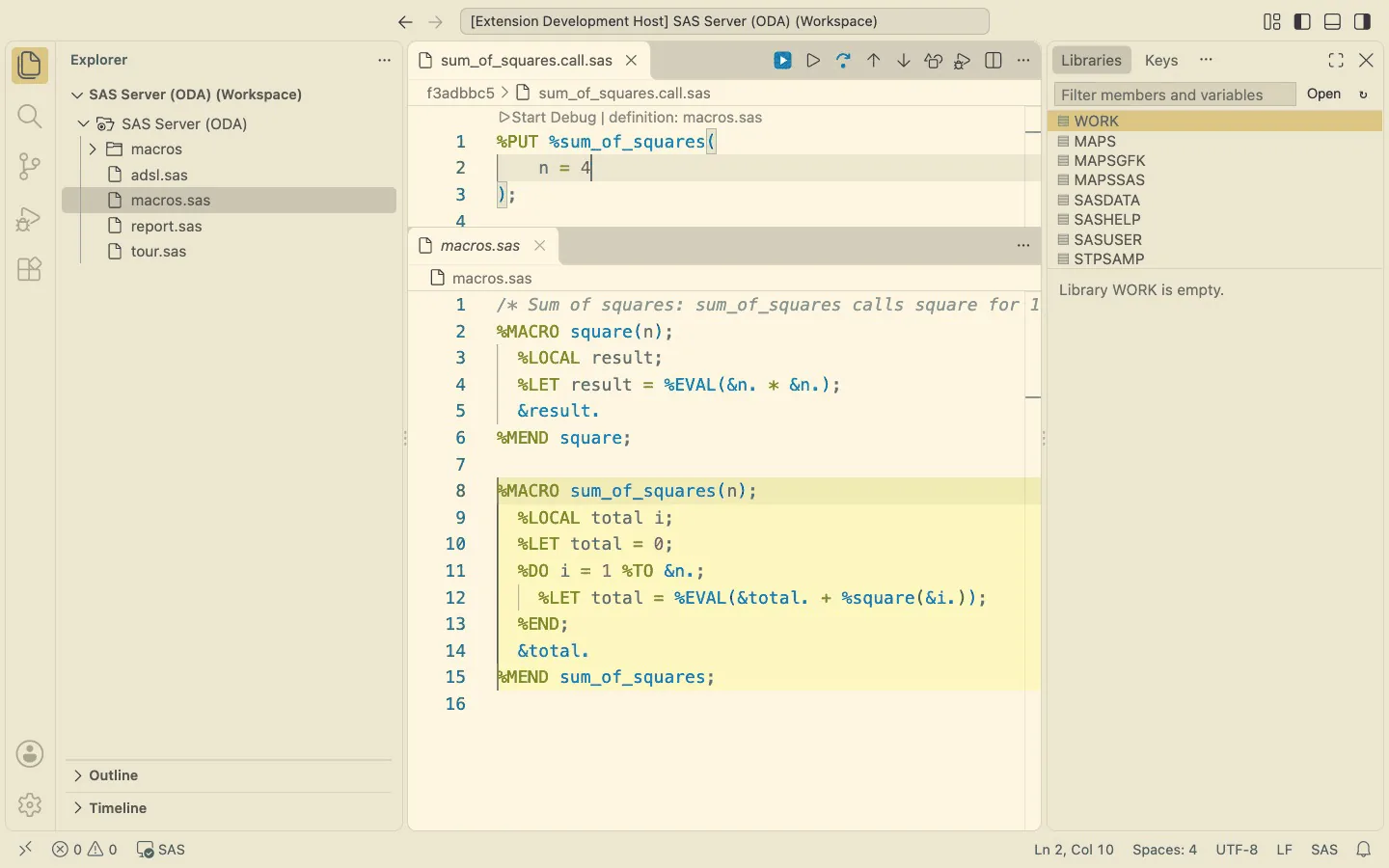
1. The call. Put the cursor in %sum_of_squares and click the blue Debug Macro button in the title bar: a
call pane opens above the definition with the call prefilled, every parameter by name. Fill in n = 4.
2. A breakpoint with a condition. Click in the gutter of the loop line, right-click the red dot → Edit
Condition → &i. = 3: the loop stops only in its third pass.
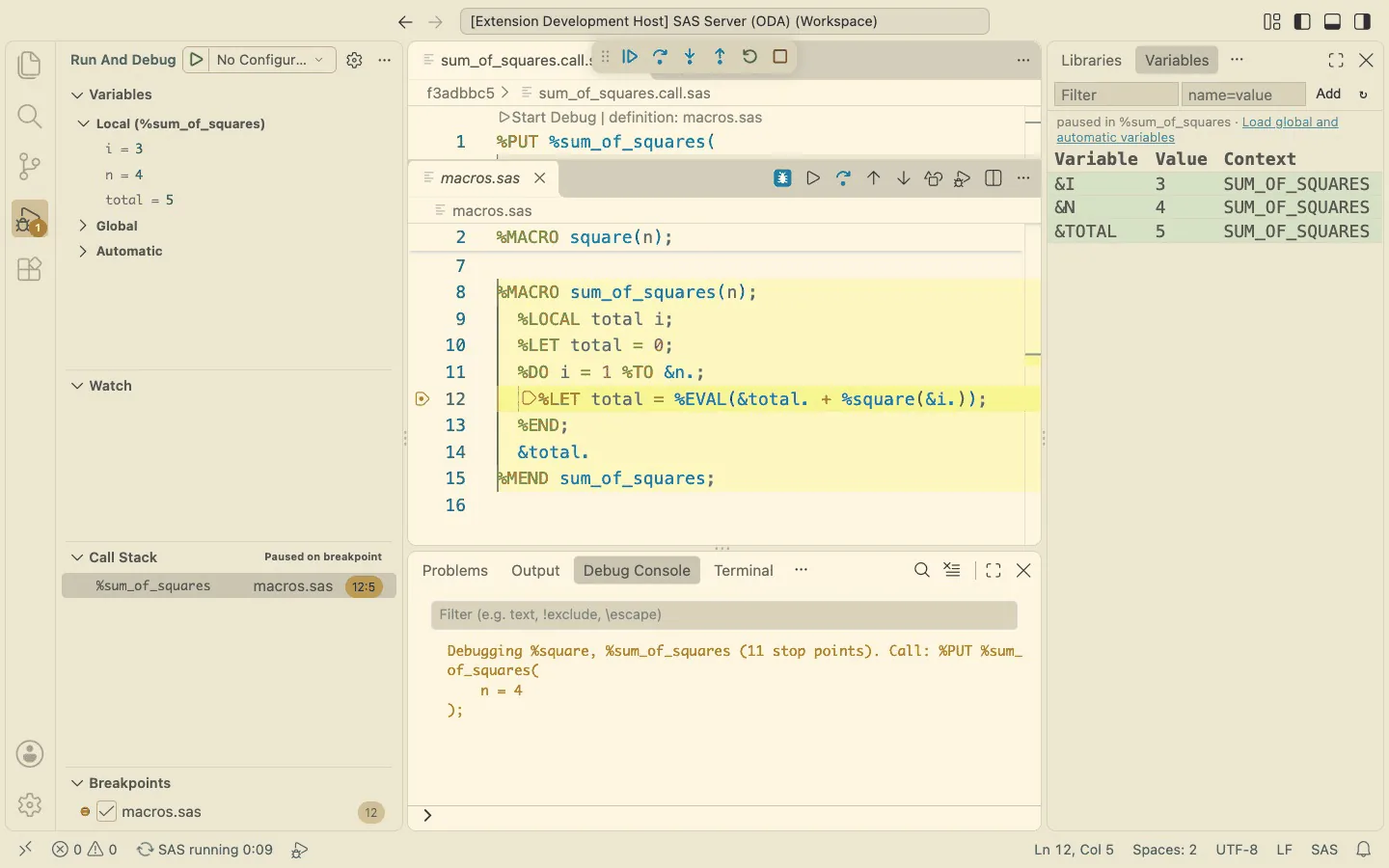
3. Start. Click the blue Start Debug button of the call pane (or F5 there). The debugger stops at the first statement; the Variables tab shows the macro variables of each macro.
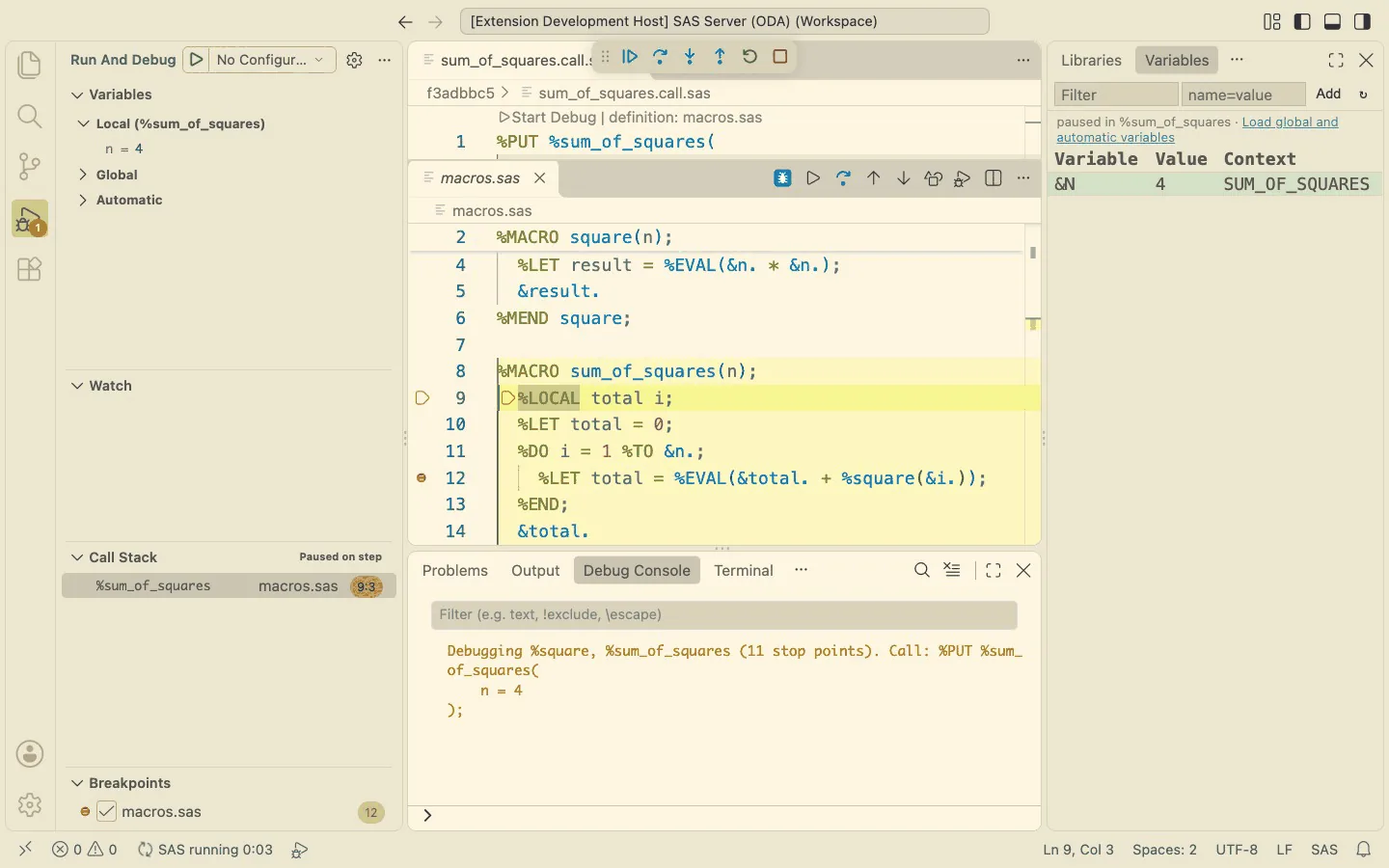
4. Continue (F5) runs to the breakpoint: i = 3, total = 1 + 4 = 5.
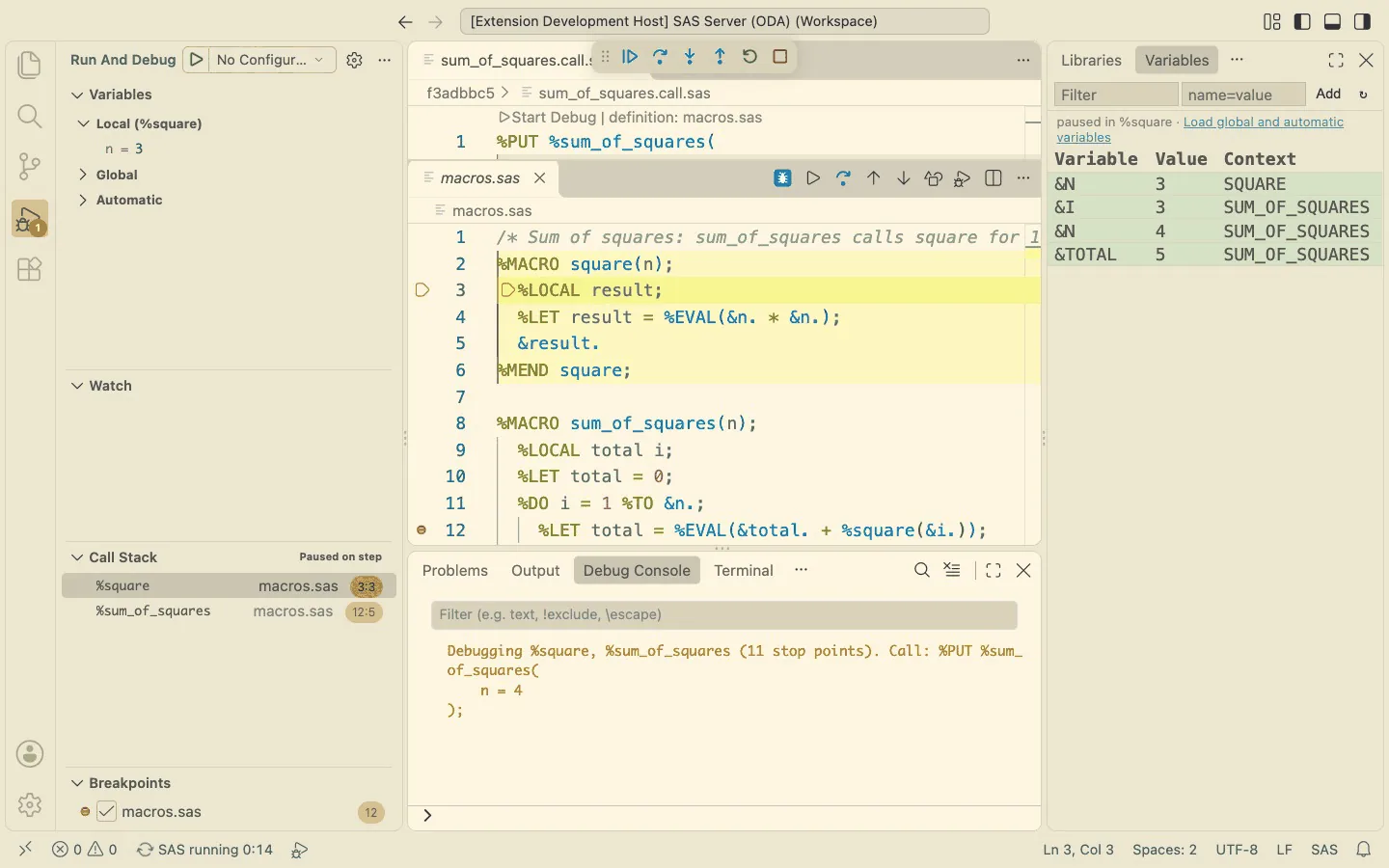
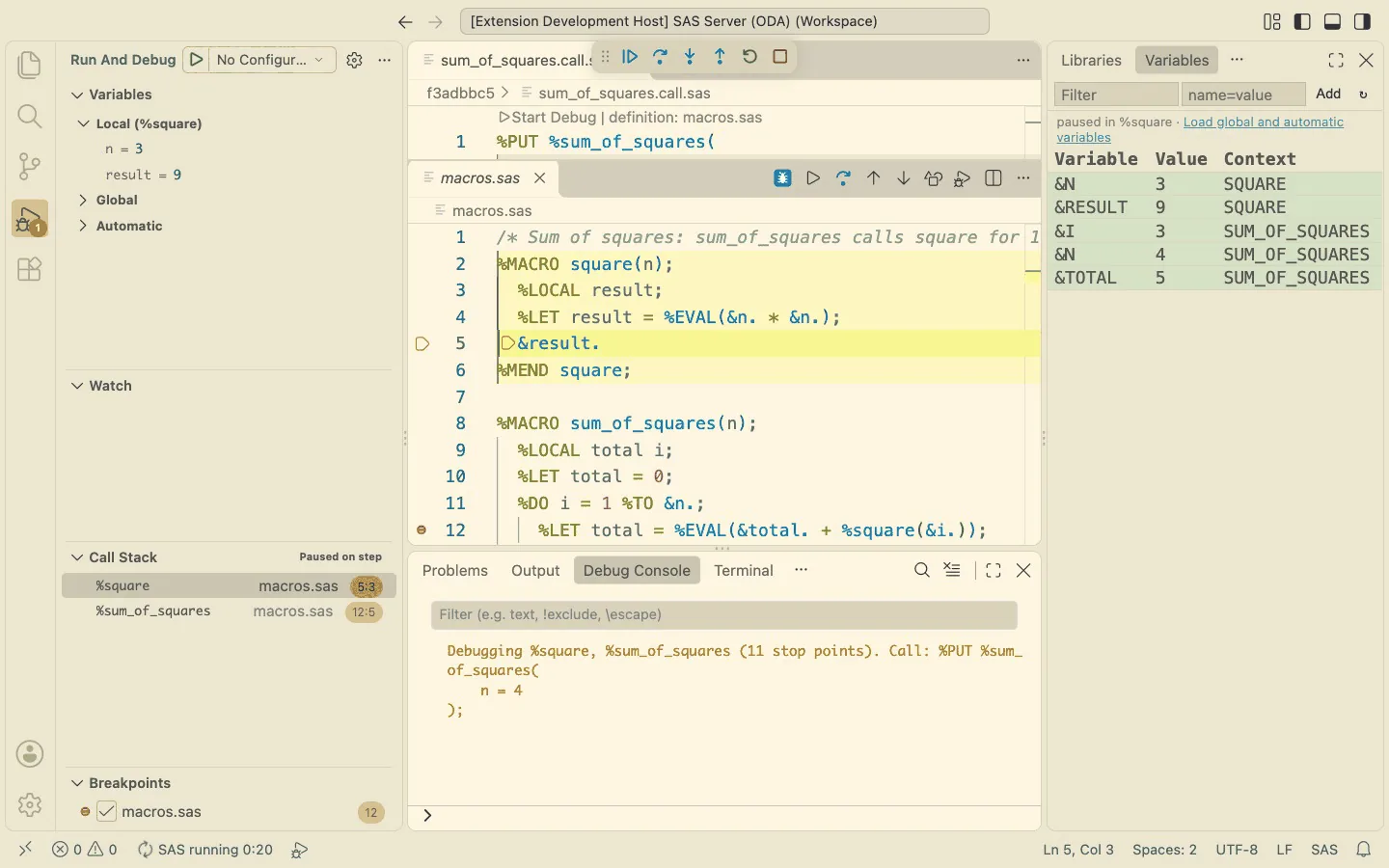
5. Step Into (F11) goes into %square: the call stack shows both macros, n = 3. Step Over (F10) runs one
statement: result = 9. Step Out (Shift+F11) returns to %sum_of_squares.
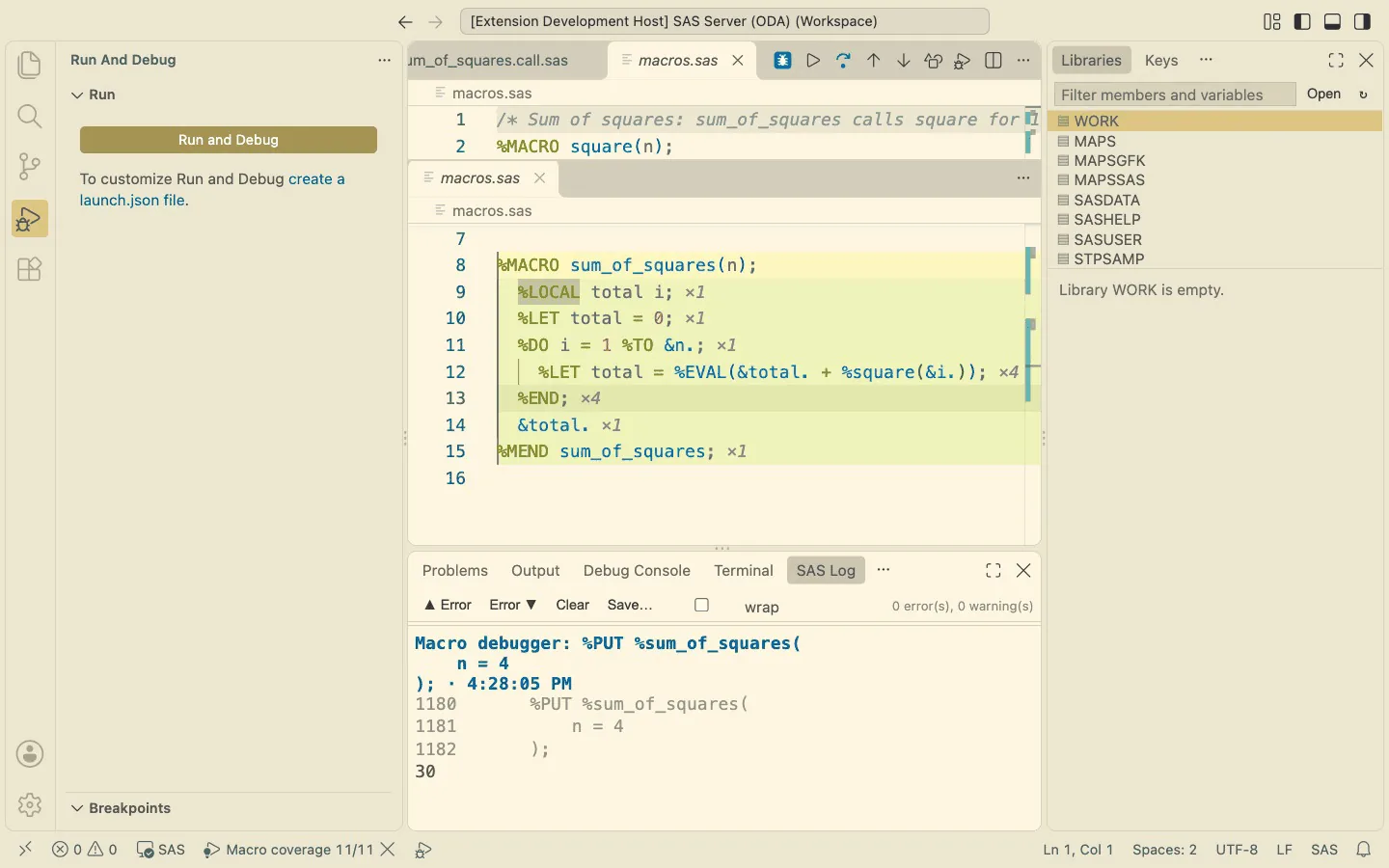
6. The end. Remove the breakpoint and Continue: RESULT=30 in the SAS Log, and every macro line shows how often it
ran (×4 in the loop); lines never reached are marked.
From a program that calls the macro. Put the cursor on a call in your program, e.g. %mc_qc_inc(indat=...),
and click Debug Macro: the definition is looked up in the files the program %INCLUDEs (whatever their name), then
in the program's folder and its macros folders. It opens, and the call pane above it holds your call exactly as
written, arguments and all. Run the program up to the call first, so that the data the call needs exists.
More while paused:
- Hover
&name.for its value; the Debug Console evaluates macro expressions (%EVAL(&n. * 2)) and runs SAS code inside the paused macro. - Libraries lists the data sets the macro has created so far (it refreshes when the macro rests a moment); a double-click opens one. The data is read inside the paused macro.
- Global and Automatic in the Variables view load those macro variables on request.
- Set a value in the Variables view to try another path through the macro.
14. Keys
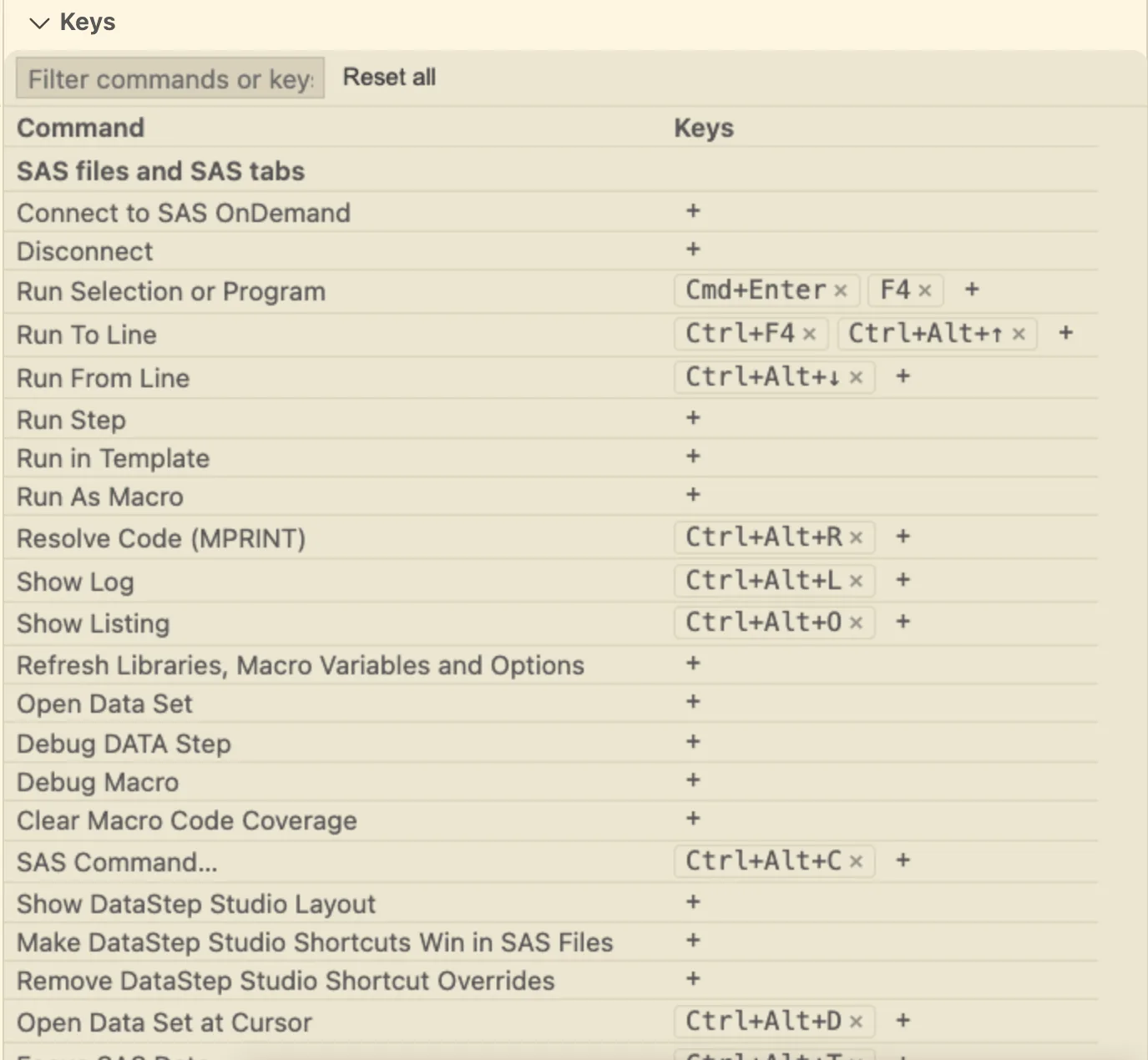
F9 opens the Keys tab: every DataStep Studio command with its keys, the data viewer's keys in their own section.
+ and press the keys to add one (a key another command has moves over), × removes one, ↺ back to the
default. Your keys are kept in the setting datastepStudio.keys.
| Key | Command |
|---|---|
F4, Cmd/Ctrl+Enter |
Run |
Ctrl+F4 / Ctrl+Alt+Down |
Run To Line / Run From Line |
F2 |
Clear Log and Output |
F12 |
Open Last Data Set Created |
F9 |
Show Keys |
F3 |
Close the data set tab |
Ctrl+Alt+R |
Resolve Code (in a program) / Show All Rows (in a data set) |
Ctrl+Alt+E / Ctrl+Alt+I |
WHERE: this value / pick values (data set) |
Ctrl+Shift+E / Ctrl+Shift+O |
Enlarge / Optimize Macro Call |
Ctrl+Alt+D |
Open Data Set at Cursor |
Ctrl+Alt+C |
SAS command |
Ctrl+Alt+L / Ctrl+Alt+O / Ctrl+Alt+T |
Show SAS Log / SAS Output / SAS Data |
15. Git on the SAS server
(Professional)
Git on the SAS server. In the SAS Server window, Pull from GitHub and Commit and Push to GitHub work on
repositories cloned on the server (through SAS's Git functions); with datastepStudio.server.autoPush every save
becomes a commit and is pushed a moment later.
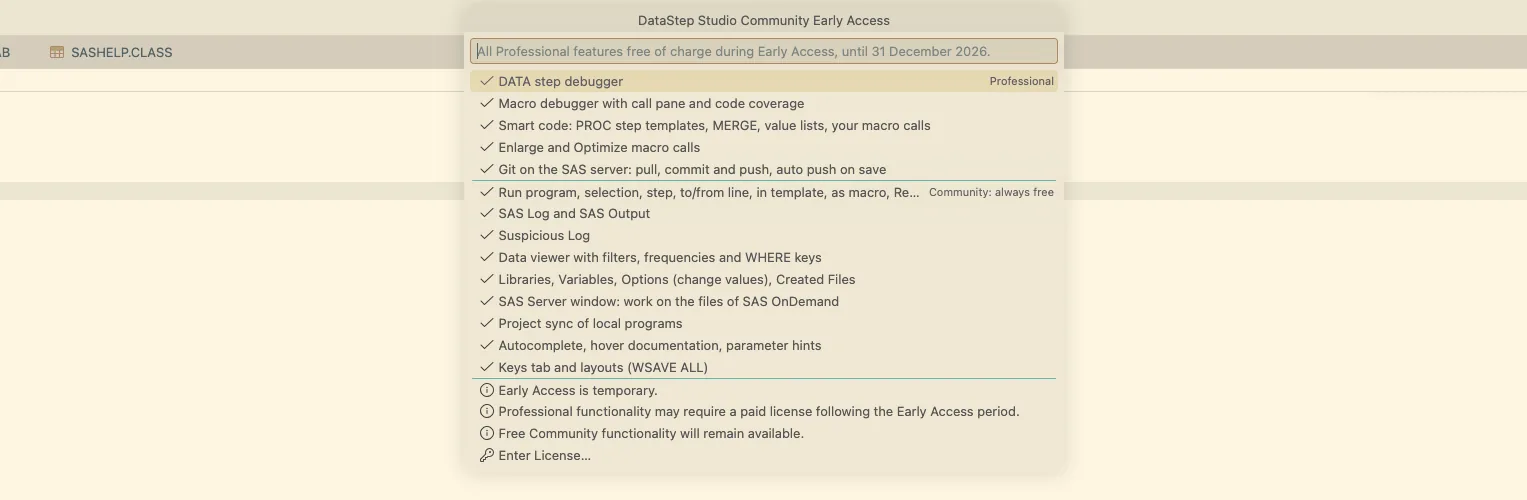
16. Editions and license
| Community — always free | Professional | |
|---|---|---|
| Run modes, SAS Log, Suspicious Log, SAS Output | ✓ | ✓ |
| Data viewer with filters and WHERE keys | ✓ | ✓ |
| Libraries, Variables, Options (change values), Created Files | ✓ | ✓ |
| SAS Server window, project sync | ✓ | ✓ |
| Autocomplete, hover documentation, parameter hints | ✓ | ✓ |
| Keys tab, layouts (WSAVE ALL) | ✓ | ✓ |
| DATA step debugger | ✓ | |
| Macro debugger with call pane and code coverage | ✓ | |
| Smart code: step templates, MERGE, value lists, your macro calls | ✓ | |
| Enlarge / Optimize macro calls | ✓ | |
| Git on the SAS server (pull, commit and push, auto push) | ✓ |
Community Early Access. All Professional features are available free of charge during Early Access. Early Access is temporary. Professional functionality may require a paid license following the Early Access period. Free Community functionality will remain available.
You do not need to sign up or enter anything: every copy of DataStep Studio comes with the Early Access entitlement. DataStep Studio: License and Edition lists the edition, its date and every feature: ✓ where it is on, 🔒 for a Professional feature after Early Access.
The extension carries a cryptographically signed entitlement (Ed25519) that says edition = EARLY_ACCESS_PRO,
expires = 2026-12-31; it checks the signature with the public key it ships with. DataStep Studio: License and Edition shows
the edition in effect, DataStep Studio: Enter License… takes a license you received. After Early Access, the Community features
stay free.
17. Settings
| Setting | Default | |
|---|---|---|
datastepStudio.connectionProfiles |
connection profiles (Add New Connection Profile writes them; passwords are in the keychain) | |
datastepStudio.java / datastepStudio.python |
found | Java and Python with SASPy, when they are in an unusual place |
datastepStudio.cfgname |
oda |
your own SASPy configuration, used when there is no profile |
datastepStudio.autoexec |
OPTIONS NOTES; |
code run after connecting |
datastepStudio.keepAliveMinutes / idleCloseMinutes |
5 / 30 | keep the session alive while you work; close it when idle |
datastepStudio.layout.showOnConnect |
on | open the SAS tabs when SAS connects |
datastepStudio.data.openIn |
editor |
data sets as editor tabs or in the SAS Data panel |
datastepStudio.templates |
Run in Template templates (${CODE}) |
|
datastepStudio.log.suspiciousNotes / suspiciousIgnore |
your Suspicious Log rules | |
datastepStudio.keys |
your keys (the Keys tab writes it) | |
datastepStudio.sync.askFolder |
on | ask which folder to copy to SAS OnDemand |
datastepStudio.server.autoPush |
off | Git: commit and push each save (Professional) |
18. Troubleshooting
- Check Setup says Java or Python is missing although it is installed — set
datastepStudio.javaordatastepStudio.pythonto its full path (which java/where javain a terminal shows it). - The connect fails — the error offers what can fix it: Enter Password Again (wrong or changed password), Check Setup. Wrong home region: run Add New Connection Profile again with the right one (same name replaces it).
- "The application could not log on to the server … configuration is invalid" — SAS OnDemand refused the session: wrong user or password, or too many sessions of the same account at once (another DataStep Studio window, SAS Studio, a script). Close the others and connect again.
- The DATA step debugger says it needs SASPy 5.102 to 5.109 — run DataStep Studio: Check Setup and choose Install SASPy (DataStep Studio's own environment gets a supported version), then DataStep Studio: Restart SAS Session.
- The SAS Server window shows a "!" on its folder, or no DataStep Studio commands — the window is in Restricted Mode and DataStep Studio is older than 0.2.3. Update the extension, or trust the window: Workspaces: Manage Workspace Trust → Trust (see Work on the SAS server).
- "Failed to start the server" — SAS OnDemand refuses new sessions for a while after many starts or a crash. Wait a few minutes; do not retry in a loop.
- The list of suggestions does not open with
Ctrl+Spaceon a Mac — macOS uses Control+Space to switch the keyboard input source; useCmd+I, or turn off Select the previous input source in System Settings → Keyboard → Keyboard Shortcuts → Input Sources. - A key does nothing — another extension may own it: the Keys tab shows the keys in effect, and SAS: Make SAS Workbench Shortcuts Win in SAS Files puts DataStep Studio's keys first.
- Enlarge Macro Call says the definition is not known — open the file that defines the macro, or keep it in the
program's folder, a folder above it, a
macrosfolder next to one of them, or a SASAUTOS folder. - WORK is full — SAS OnDemand limits the WORK space; delete large data sets you no longer need
(
PROC DATASETS LIBRARY=WORK KILL NOLIST; QUIT;).
The SAS syntax data for autocomplete and hover comes from the SAS Extension for
Visual Studio Code by SAS Institute Inc., and a modified SASPy class (both Apache License 2.0; see THIRD_PARTY_NOTICES.txt). SAS and all other SAS Institute
Inc. product or service names are registered trademarks or trademarks of SAS Institute Inc. DataStep Studio is an
independent project and is not affiliated with or endorsed by SAS Institute Inc.