DataStep Studio Install

Write, run and debug SASin VS Code.

A VS Code extension for SAS programmers: a log that points back to your code, a data viewer, autocomplete that knows SAS, a formatter, and debuggers for DATA steps and macros. For SAS OnDemand for Academics and SAS 9.4 servers.

Free during Community Early Access · Nothing collected

adsl.saspaused on step
1▶DATA work.adsl;
2▶ SET sashelp.class;
3▶ bmi = ROUND(weight / height**2 * 703, 0.1);
4▶ IF age < 13 THEN agegr1 = '<13';
5▶ ELSE IF age <= 14 THEN agegr1 = '13-14';
6▶ ELSE agegr1 = '>14';
7▶RUN;

PDV

_N_
1
Name
Age
.
Height
.
Weight
.
bmi
.
agegr1
F10 steps one statement. The values change as the step runs.

What it does

The SAS workflow you know, in a modern editor

Run a step with one key, read a clean log, look at the data and find out why a macro does what it does. DataStep Studio connects VS Code to your SAS session through SASPy and keeps everything a SAS programmer works with in view.

Run with one key

F4 runs the program or the selection. Run To Line, Run From Line, Run Step (the step or SQL statement at the cursor), Run As Macro and Resolve Code (the code a macro call generates) are one click away.

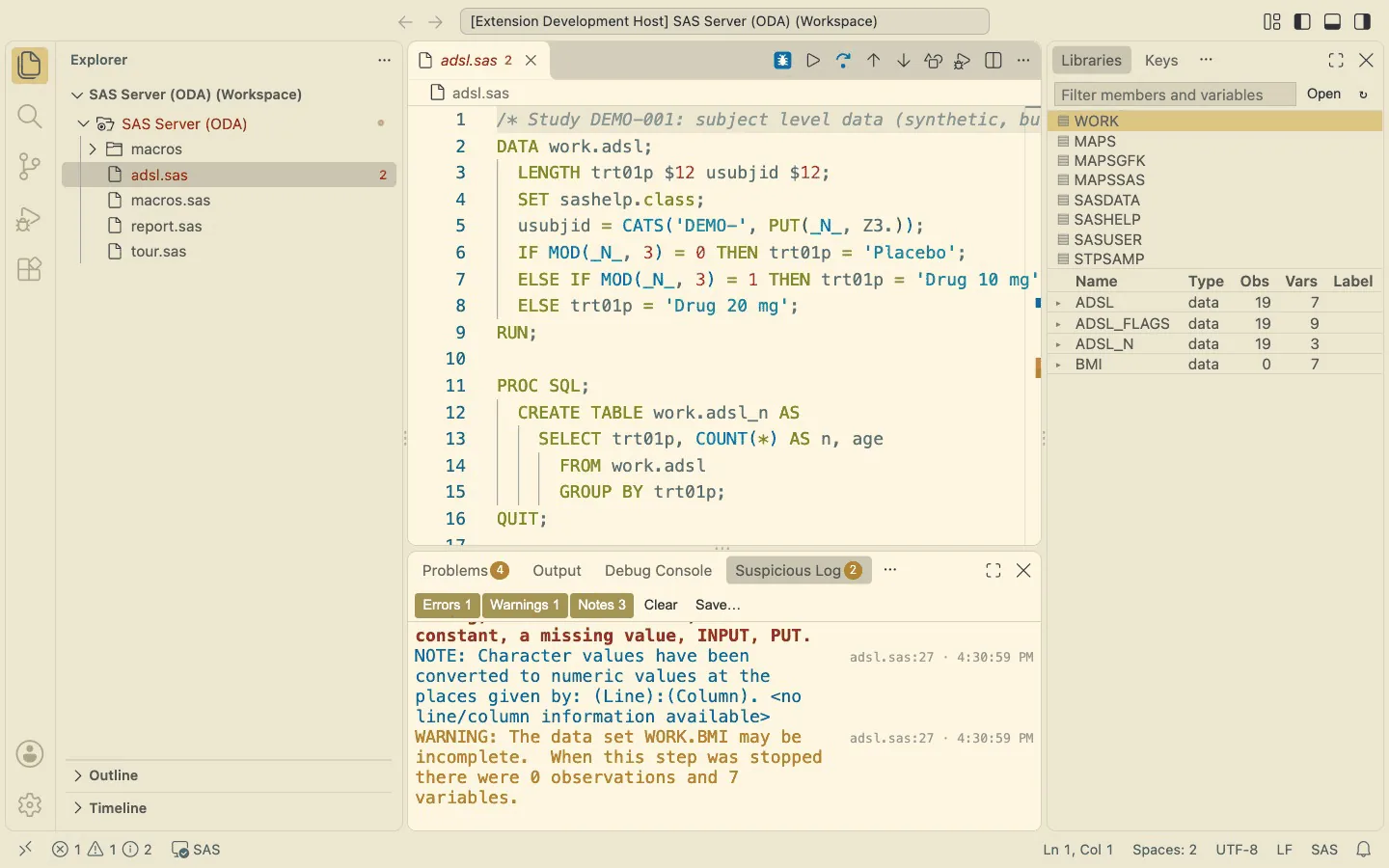
The SAS log is coloured, and every ERROR appears in Problems at the line it belongs to.
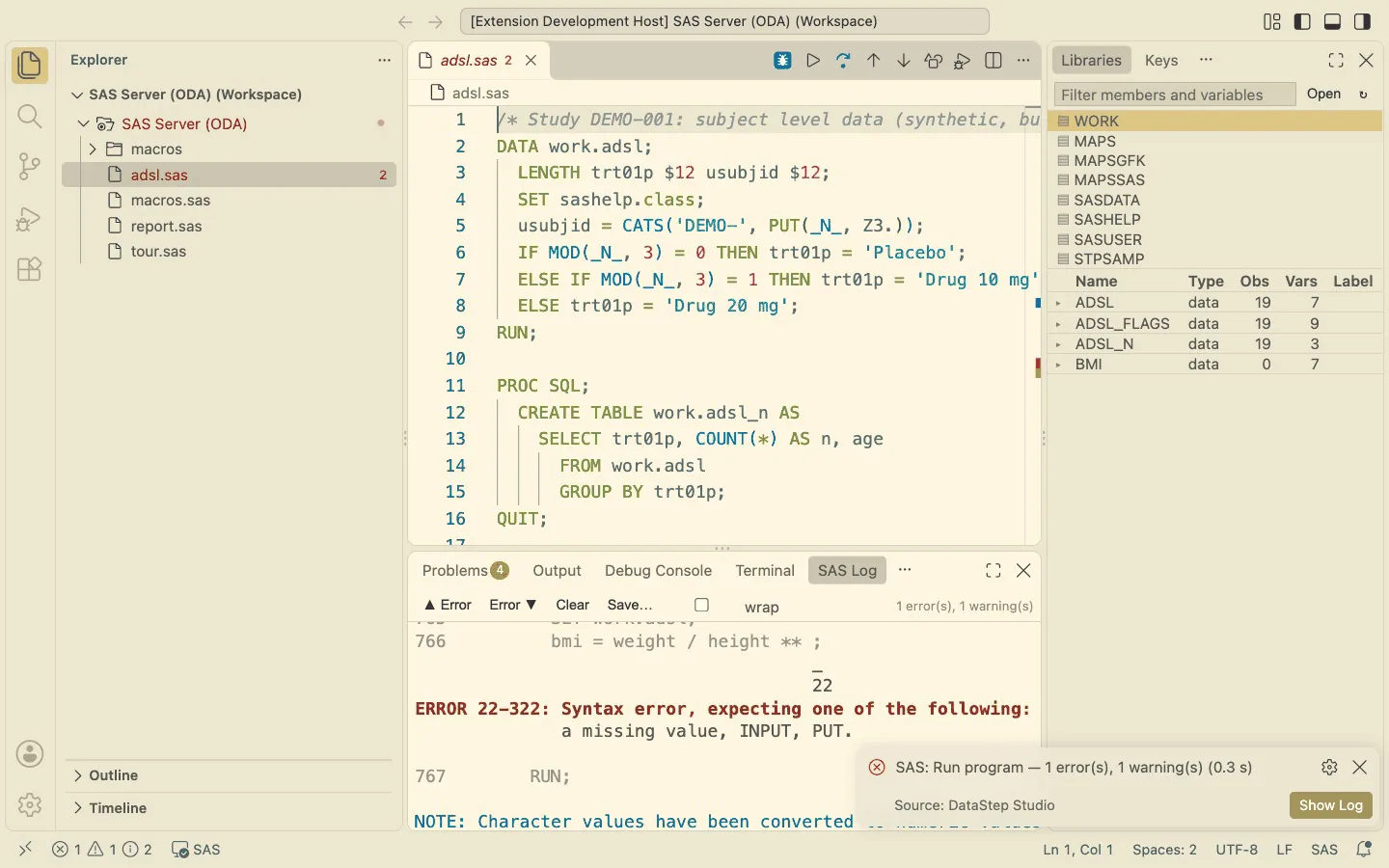
A SAS program in VS Code with the coloured SAS log below and the error marked in Problems

A log check that keeps only what needs a look

The Suspicious Log lists ERRORs, WARNINGs and the NOTEs a QC review looks for. A click jumps to the statement.

The Suspicious Log tab with one error, one warning and three notes, each with its program line

Data at a glance

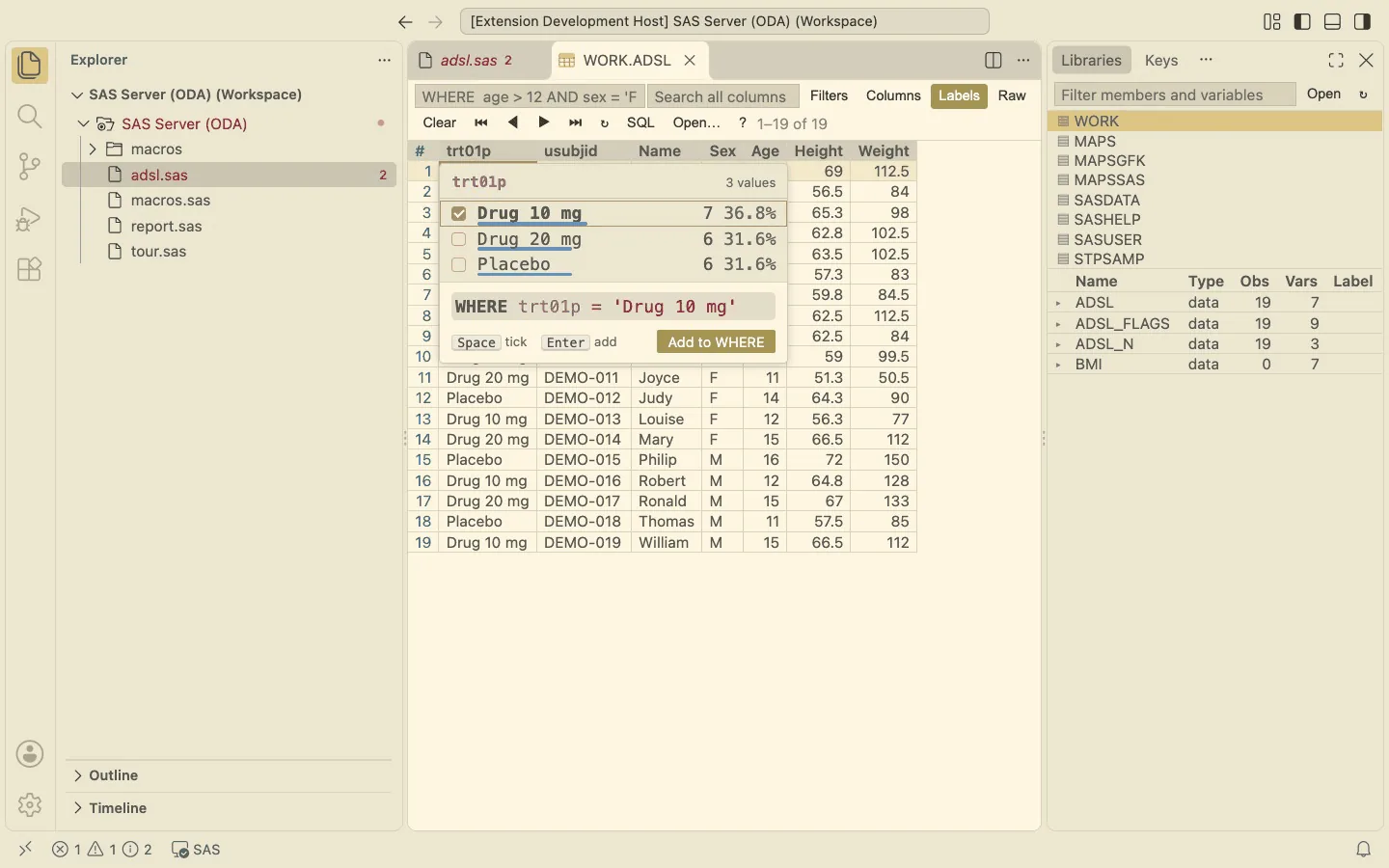
Open a data set with a double-click in Libraries. Filter with WHERE, sort, look at frequencies. Tick the values you want to keep and the SAS condition is written for you.

  • Ctrl+Alt+I on a column: WHERE … IN, values ticked
  • Ctrl+Alt+E on a cell: WHERE … = that value
The data viewer with the value picker open on the column trt01p and the WHERE condition written live

Autocomplete that knows SAS

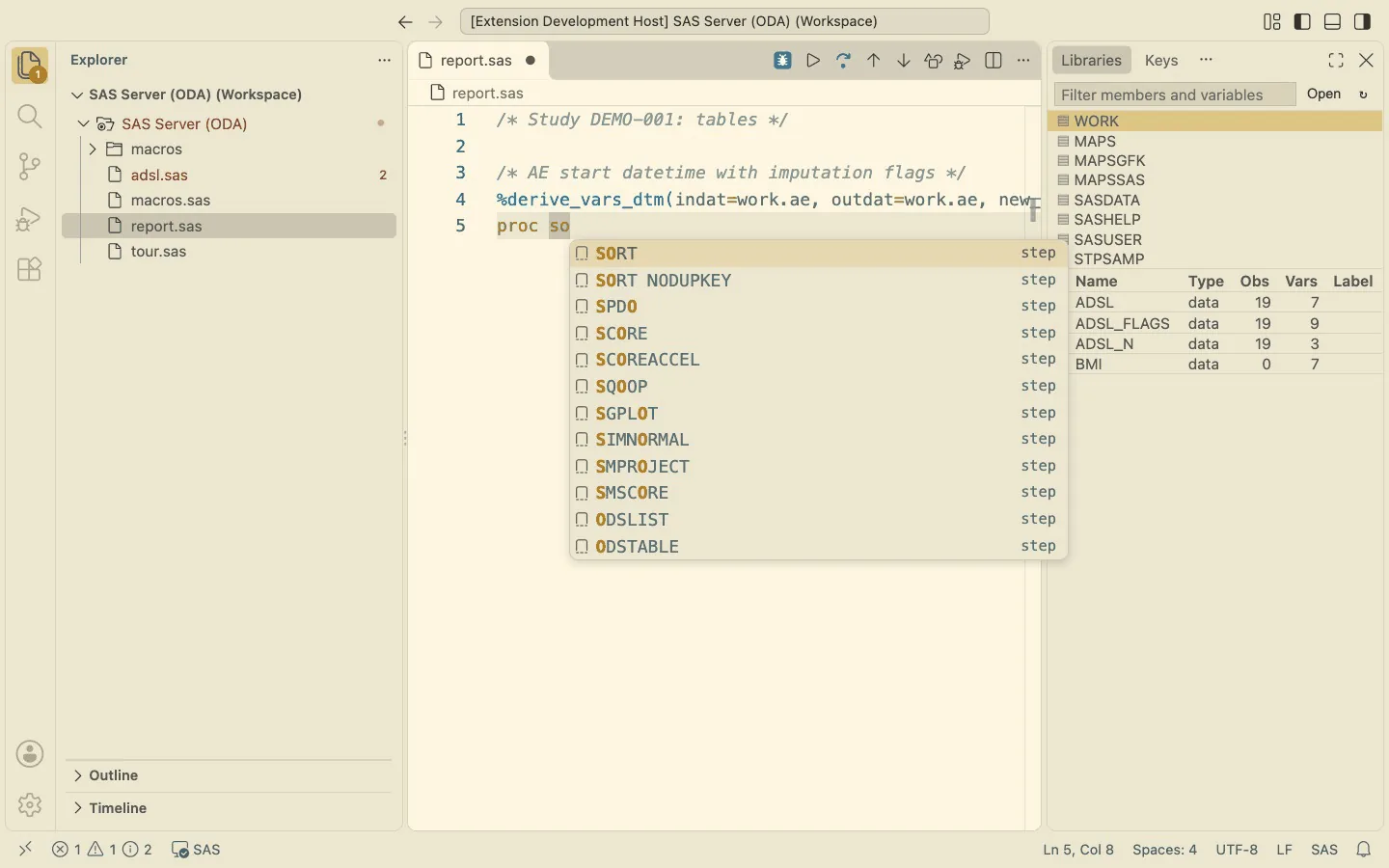
Procedures, statements, options, functions and formats, your librefs, data sets and columns, with the SAS documentation one hover away. Type proc so and Enter: the whole PROC SORT, with DATA= and BY filled in. Your own macros come with every parameter.

Autocomplete offering a PROC SORT step template

Format SAS Program

One right-click, and the program is readable again

Keywords in upper case, names in lower case, two spaces per level, = and IF / ELSE aligned, long macro calls comma first. Strings, comments, DATALINES, macro text and your own line breaks stay as they are. A token comparison checks that only the layout changed; if anything else would, the program is left alone.

Before
data &outlib..adsl(keep=usubjid trt01p bmi bmicat);
set sashelp.class;
usubjid=catx('-', "&study", put(_n_, z3.));
if mod(_n_,3)=0 then trt01p='Placebo';
else if mod(_n_,3)=1 then trt01p='Drug 10 mg';
else trt01p='Drug 20 mg';
   if bmi < 18.5 then bmicat = 'Underweight'; else if bmi < 25 then bmicat = 'Normal'; else bmicat = 'Overweight';
run;
%summ(indat=adsl, var=age bmi, byvar=trt01p, outdat=summary_by_treatment, dec=1, title=Age and BMI by treatment group)
After
DATA &outlib..adsl(KEEP=usubjid trt01p bmi bmicat);
  SET sashelp.class;
  usubjid = CATX('-', "&study.", PUT(_N_, Z3.));
       IF MOD(_N_, 3) = 0 THEN trt01p = 'Placebo';
  ELSE IF MOD(_N_, 3) = 1 THEN trt01p = 'Drug 10 mg';
  ELSE                         trt01p = 'Drug 20 mg';
       IF bmi < 18.5 THEN bmicat = 'Underweight';
  ELSE IF bmi < 25   THEN bmicat = 'Normal';
  ELSE                    bmicat = 'Overweight';
RUN;
%summ(
    indat  = adsl
  , var    = age bmi
  , byvar  = trt01p
  , outdat = summary_by_treatment
  , dec    = 1
  , title  = Age and BMI by treatment group
)

Debuggers

Step through a DATA step. Step through a macro.

Breakpoints in the margin, conditions in SAS or macro language, Step Over, Step Into and Step Out, and the values in the Variables view, as in any other language in VS Code.

DATA step

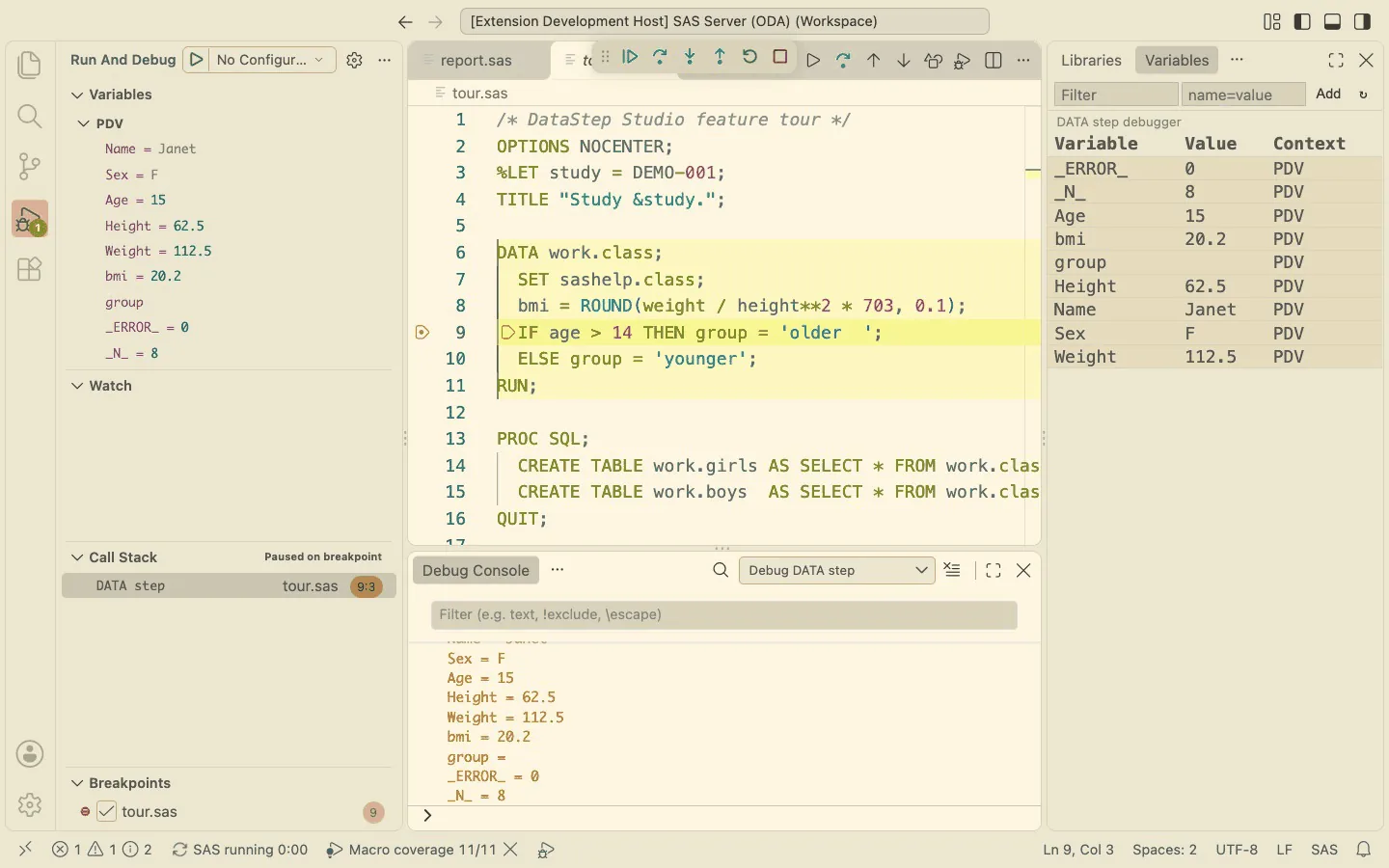
See the PDV change, statement by statement

  • Conditional breakpoints such as usubjid = "TEST12" stop at that observation
  • The PDV in the Variables view; hover a variable for its value; change a value
  • A DATA step that calls a macro is expanded first, so you step through the statements it generates
The DATA step debugger paused at a breakpoint with the PDV in the Variables view
Macro

Find out why a macro does what it does

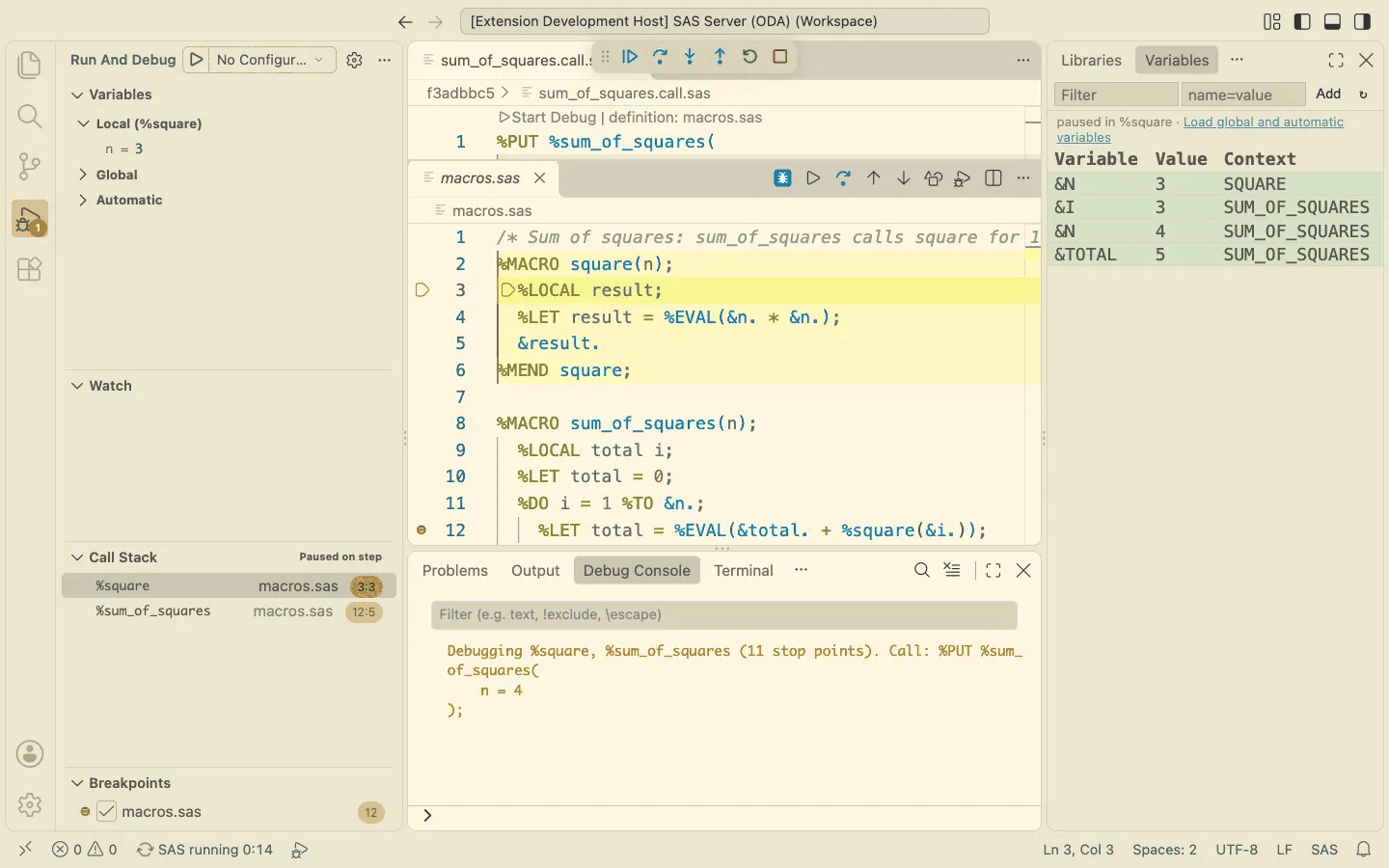
  • Put the cursor on a call in your program and click Debug Macro: your call, with its arguments, goes into the call pane
  • Step Into nested macros; the call stack and each macro's variables in view
  • Breakpoints with conditions in macro language (&i. = 3), code coverage after the run
  • Open the data sets the paused macro has made so far
The macro debugger inside %square, called from %sum_of_squares, with both macros on the call stack
The 2-minute tour
The macro debugger in one minute

Install

From nothing to your first run in about five minutes

Install

In VS Code: Extensions (Shift+Cmd+X), search DataStep Studio, Install. Or paste into Quick Open (Cmd+P):

ext install datastep-labs.datastep-studio

Check Setup

DataStep Studio: Check Setup finds Java and Python and installs SASPy with one click.

Connect

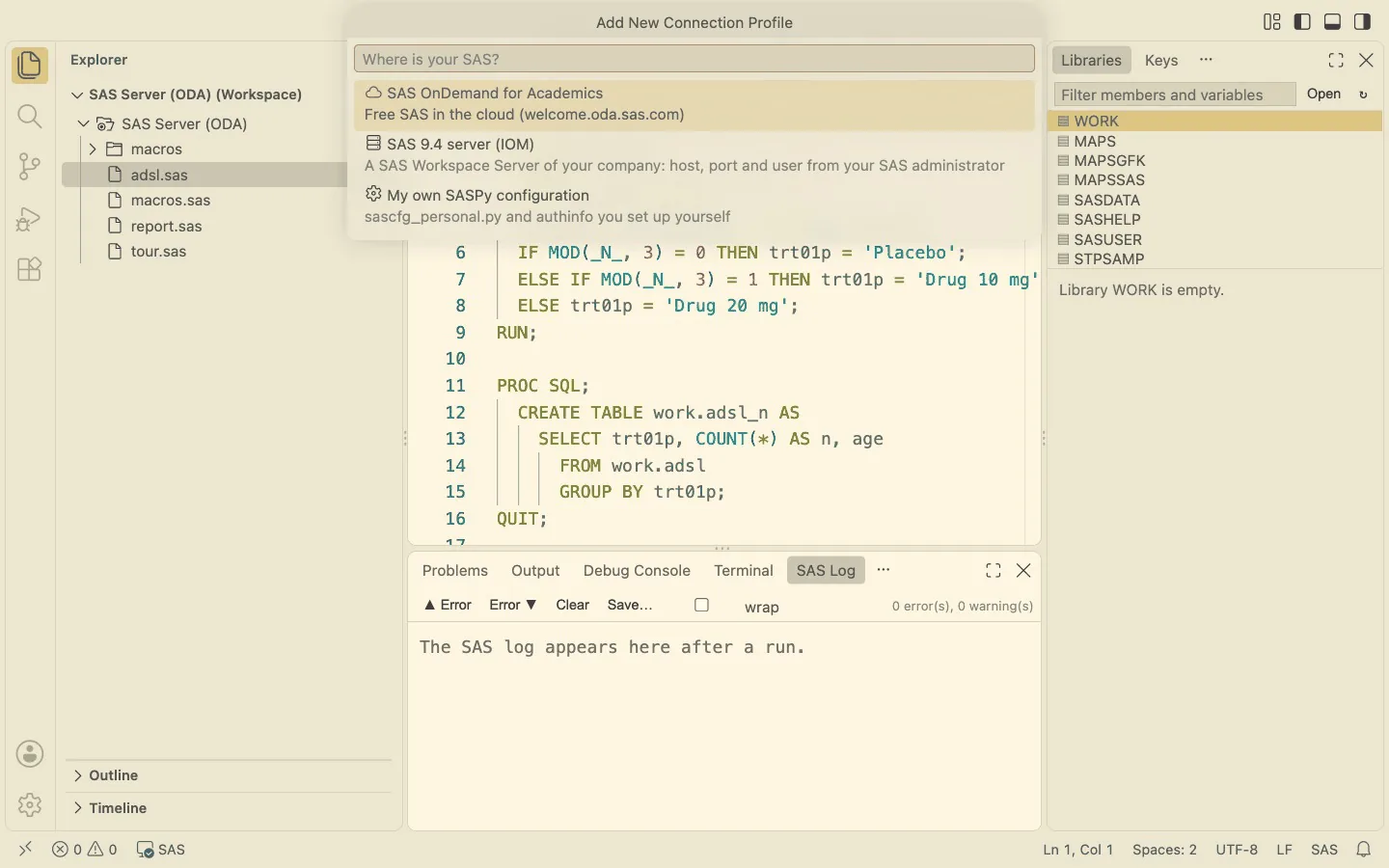
Add New Connection Profile: SAS OnDemand (your region and user ID) or a SAS 9.4 server (host, port, user). The password goes to your system's keychain.

Run

Open a .sas file and press F4. The manual is inside VS Code: DataStep Studio: Open Manual.

Step by step, with pictures: Get started, the user manual and the how-to guide. Needs VS Code 1.85 or newer, Java 8 or newer and Python 3.8 or newer, and a SAS OnDemand for Academics account or a SAS 9.4 server that SAS Enterprise Guide connects to (IOM). Works next to the official SAS extension.

Installation, step by step: from the Marketplace to both debuggers
The Add New Connection Profile dialog: SAS OnDemand for Academics, SAS 9.4 server or your own SASPy configuration
Add New Connection Profile

Editions

Community is free. Professional is free during Early Access.

CommunityAlways free
  • All run modes, SAS Log, Suspicious Log, SAS Output
  • Data viewer with filters and WHERE keys
  • Libraries, Variables, Options, Created Files
  • SAS Server window and project sync
  • Autocomplete, documentation on hover, parameter hints
  • Format SAS Program and style hints
ProfessionalFree during Community Early Access
  • DATA step debugger
  • Macro debugger with code coverage
  • Smart code: step templates, value lists, your macro calls
  • Enlarge and Optimize macro calls
  • Git on the SAS server

During Community Early Access, all Professional features are available free of charge. Early Access is temporary. Professional functionality may require a paid license following the Early Access period. Free Community functionality will remain available. Nothing to sign up for: install it and every feature is on.

Privacy

Your data stays yours

DataStep Studio collects nothing: no telemetry, no usage data. Your programs, data sets and logs go only to your own SAS session. Your password is kept in your system's keychain.

Something not working? See Troubleshooting in the manual. Questions and feedback: Q & A on the Marketplace or the DataStep Studio thread in the SAS Community.

Questions

Does it work with a SAS 9.4 server at my company?

It is built for SAS 9.4 Workspace Servers (IOM), the connection SAS Enterprise Guide uses. So far it has been tested with SAS OnDemand for Academics, which uses the same technology. Reports from company servers, Windows and Linux are very welcome.

What about SAS Viya?

Not yet. SAS Viya needs a different connection, and the debuggers rely on features Viya does not offer in the same way.

Can I use it next to the official SAS extension?

Yes. DataStep Studio runs code with F4, so the official extension's F3 and F8 keep working.

Does it change my programs?

Only when you ask: Format SAS Program lays out the program you right-click. Running and debugging never change your files.

Cursor, VSCodium or Windsurf?

These editors use another extension store. Download the extension from its Marketplace page (Download Extension) and install the .vsix file with Extensions: Install from VSIX.

What happens after Early Access?

Community stays free. Professional features may require a paid license after the Early Access period; the extension tells you before that happens.